mirror of
https://github.com/jerryc127/hexo-theme-butterfly.git
synced 2026-04-16 20:30:53 +08:00

1263 lines
32 KiB
Markdown
1263 lines
32 KiB
Markdown
# 快速开始
|
||
|
||
`hexo-theme-butterfly`是基于[Molunerfinn](https://github.com/Molunerfinn)的[hexo-theme-melody](https://github.com/Molunerfinn/hexo-theme-melody)的基础上进行开发的。
|
||
文档也是在[hexo-theme-melody](https://molunerfinn.com/hexo-theme-melody-doc/)的文档基础上修改。因为一些配置变更导致与原主题配置上有部分区别。故如果安装`hexo-theme-butterfly`主题,请参考这篇文档。
|
||
|
||
## 主题安装和升级
|
||
|
||
### 安装
|
||
|
||
在你的博客根目录里
|
||
|
||
```
|
||
git clone -b master https://github.com/jerryc127/hexo-theme-butterfly.git themes/Butterfly
|
||
```
|
||
|
||
如果想要安装比较新的dev分支,可以
|
||
|
||
```
|
||
git clone -b div https://github.com/jerryc127/hexo-theme-butterfly.git themes/Butterfly
|
||
```
|
||
|
||
### 应用主题
|
||
|
||
修改站点配置文件`_config.yml`,把主题改为`Butterfly`
|
||
|
||
```yaml
|
||
theme: Butterfly
|
||
```
|
||
|
||
> 如果你没有 pug 以及 stylus 的渲染器,请下载安装: `npm install hexo-renderer-jade hexo-renderer-stylus --save` or `yarn add hexo-renderer-jade hexo-renderer-stylus`
|
||
|
||
### 平滑升级
|
||
|
||
为了主题的平滑升级, `Butterfly` 使用了 [data files](https://hexo.io/docs/data-files.html)特性。
|
||
|
||
推荐把主题默认的配置文件`_config.yml`复制到 Hexo 工作目录下的`source/_data/butterfly.yml`,如果`source/_data`的目录不存在那就创建一个。
|
||
|
||
> 注意,如果你创建了`butterfly.yml`, 它将会替换主题默认配置文件`_config.yml`里的配置项 (**不是合并而是替换**), 之后你就只需要通过`git pull`的方式就可以平滑地升级 `theme-melody`了。
|
||
|
||
# 配置
|
||
|
||
## 配置文件说明
|
||
|
||
- 站点配置文件`_config.yml`是 hexo 工作目录下的主配置文件
|
||
- `butterfly.yml` 是 `Butterfly` 的配置文件。它需要你手动将主题目录下的`_config.yml`文件复制到 hexo 工作目录的`source/_data/butterfly.yml`中。如果文件或者文件夹不存在,需要手动创建。
|
||
|
||
## 语言
|
||
|
||
修改站点配置文件 `_config.yml`
|
||
|
||
默认语言是 en
|
||
|
||
主题支持三种语言
|
||
|
||
- default(en)
|
||
- zh-CN (简体中文)
|
||
- zh-TW (繁体中文)
|
||
|
||
## 自定义主题色
|
||
|
||
可以修改大部分UI颜色
|
||
|
||
配置`butterfly.yml`,比如:
|
||
|
||
>颜色值必须被双引号包裹,就像`"#000"`而不是`#000`。否则将会在构建的时候报错!
|
||
|
||
```yaml
|
||
theme_color:
|
||
enable: true
|
||
main: "#9370DB"
|
||
paginator: "#7A7FF1"
|
||
button_hover: "#FF7242"
|
||
text_selection: "#69c46d"
|
||
link_color: "#858585"
|
||
hr_color: "#A4D8FA"
|
||
read-mode-bg_color: '#FAF9DE'
|
||
```
|
||
|
||
|
||

|
||
|
||
## 代码高亮主题
|
||
|
||
`Butterfly` 支持了 [Material Theme](https://github.com/equinusocio/material-theme)全部 5 种代码高亮样式:
|
||
|
||
- default
|
||
- darker
|
||
- pale night
|
||
- light
|
||
- ocean
|
||
|
||
配置`butterfly.yml`
|
||
|
||
```yaml
|
||
highlight_theme: light
|
||
```
|
||
|
||
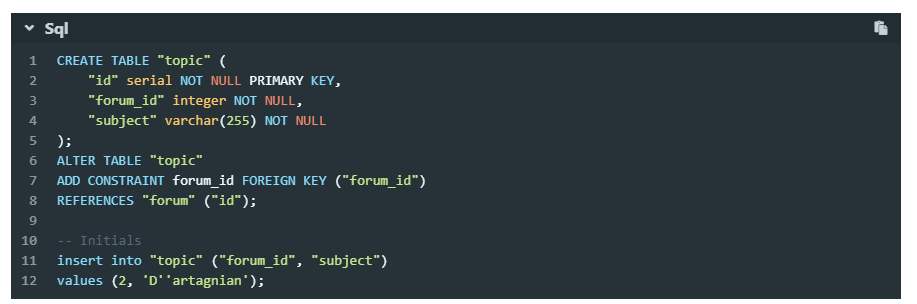
> default
|
||
|
||
|
||
|
||
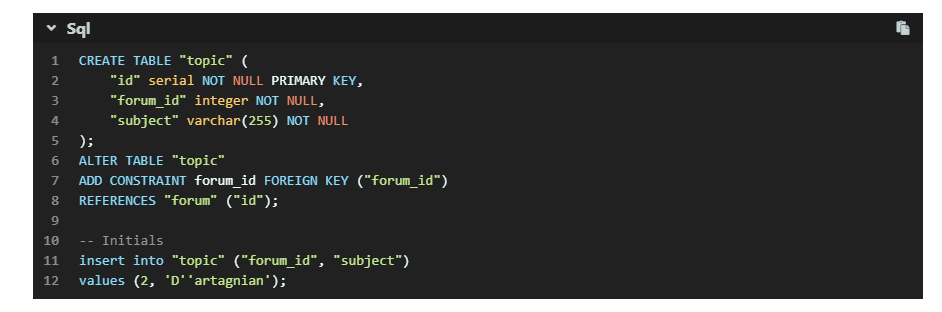
> darker
|
||
|
||
|
||
|
||
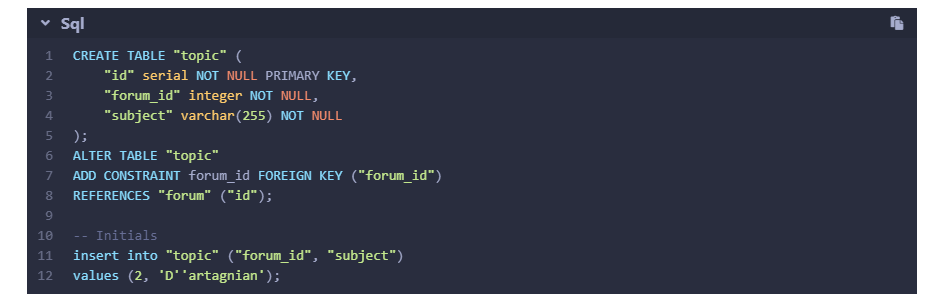
> pale night
|
||
|
||
|
||
|
||
> light
|
||
|
||
|
||
|
||
> ocean
|
||
|
||
|
||
|
||
## 代码复制
|
||
|
||
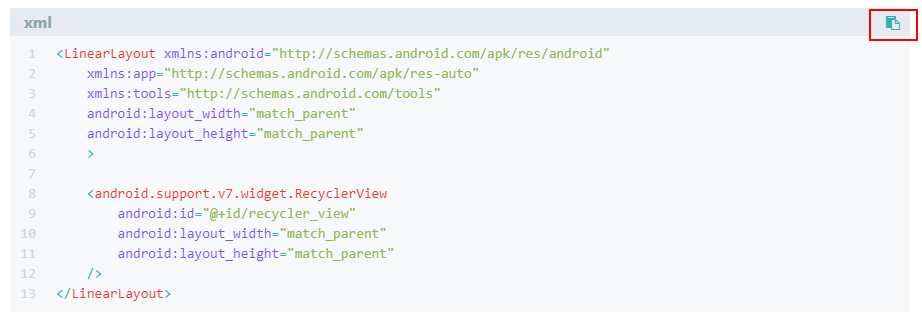
主题支持代码复制功能
|
||
|
||
配置`butterfly.yml`
|
||
|
||
```yaml
|
||
highlight_copy: true
|
||
```
|
||
|
||
|
||
|
||
## 代码换行
|
||
|
||
在默认情况下,`hexo-highlight`在编译的时候不会实现代码自动换行。如果你不希望在代码块的区域里有横向滚动条的话,那么你可以考虑开启这个功能。
|
||
|
||
配置`butterfly.yml`
|
||
|
||
```yaml
|
||
code_word_wrap: true
|
||
```
|
||
|
||
然后找到你站点的 Hexo 配置文件`_config.yml`,将`line_number`改成`false`:
|
||
|
||
```yaml
|
||
highlight:
|
||
enable: true
|
||
line_number: false
|
||
auto_detect: false
|
||
tab_replace:
|
||
```
|
||
|
||
> 设置`code_word_wrap`之前:
|
||
|
||
|
||
|
||
> 设置`code_word_wrap`之后:
|
||
|
||

|
||
|
||
## 社交图标
|
||
|
||
Butterfly支持 [font-awesome v4](https://fontawesome.com/v4.7.0/)和 [font-awesome v5](https://fontawesome.com/icons?from=io). 如需开启[font-awesome v5](https://fontawesome.com/icons?from=io),需要在`Butterfly.yml`上开启
|
||
|
||
```yaml
|
||
cdn:
|
||
css:
|
||
fontawesome: https://cdn.jsdelivr.net/npm/font-awesome@latest/css/font-awesome.min.css
|
||
fontawesomeV5: https://use.fontawesome.com/releases/v5.8.1/css/all.css
|
||
```
|
||
|
||
无论V4还是V5,书写格式都是一样的`图标名:url`
|
||
|
||
```yaml
|
||
social:
|
||
fa fa-github: https://github.com/jerryc127
|
||
fa fa-rss: /atom.xml
|
||
```
|
||
|
||
图标名可在这寻找
|
||
|
||

|
||
|
||
PC:
|
||
|
||
|
||
|
||
Mobile:
|
||
|
||

|
||
|
||
## 导航菜单
|
||
|
||
配置`butterfly.yml`
|
||
|
||
```yaml
|
||
menu:
|
||
首页: /||fa fa-home
|
||
时间轴: /archives/||fa fa-archive
|
||
标签: /tags/||fa fa-tags
|
||
分类: /categories/||fa fa-folder-open
|
||
留言板: /messageboard/||fa fa-coffee
|
||
友链: /link/||fa fa-link
|
||
关于: /about/||fa fa-heart
|
||
```
|
||
|
||
> 必须是 `/xxx/`,后面`||`分开,然后写图标名。菜单名称可自己修改。
|
||
|
||

|
||
|
||
## 主页文章节选(自动节选和文章页description)
|
||
|
||
因为主题UI的关系,`主页文章节选`只支持`自动节选`和`文章页description`。优先选择`自动节选`。
|
||
|
||
在`butterfly.yml`里可以开启`auto_excerpt`的选项,你的文章将会在自动截取部分显示在主页。(默认显示150个字)。
|
||
|
||
```yaml
|
||
auto_excerpt:
|
||
enable: true
|
||
length: 150
|
||
```
|
||
|
||
如果没有开启`自动节选`,则会显示文章页front-matter里面设置的`description`。
|
||
|
||
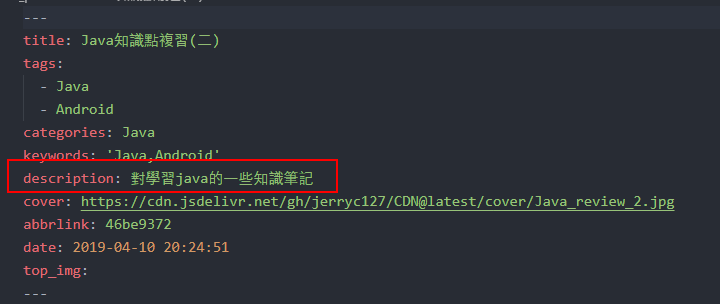
|
||
|
||
> 注意:如果开启了自动节选功能,代码块的显示将有可能不正常。
|
||
|
||
## 顶部图
|
||
|
||
`顶部图`有2种配置:具体url 和(留空,true和false,三个效果一样)
|
||
|
||
### page页
|
||
|
||
#### 当具体url时
|
||
|
||
主页的顶部图可以在`Butterfly.yml`设置`top_img`
|
||
|
||
archives页的顶部图可以在`Butterfly.yml`设置`archive_img`
|
||
|
||
其他`page`页的顶部图可以在各自的md页面设置`front-matter`中的`top_img`
|
||
|
||
> 除`主页`外,其他页面如果没有设置各自的`top_img`,则会显示与主页同样的`top_img`图片
|
||
|
||
#### 当顶部图留空,true和false
|
||
|
||
主页会显示纯颜色的顶部图
|
||
|
||
其他page的顶部图没有设置时,也会显示纯颜色的顶部图
|
||
|
||
### post页
|
||
|
||
`post`页的顶部图会优先显示各自`front-matter`中的`top_img`,如果没有设置,则会缩略图(即各自``front-matter`中的`cover`),如果没有则会显示默认的post顶部图,可在`Butterfly.yml`设置`post_img`
|
||
|
||
## 文章相关项
|
||
|
||
这个选项是用来显示文章的相关信息的。
|
||
|
||
配置`butterfly.yml`
|
||
|
||
```yaml
|
||
post_meta:
|
||
date_type: both #or created or updated 文章日期是创建日或者更新日或都显示
|
||
categories: true # or false 是否显示分类
|
||
tags: true # or false 是否显示标签
|
||
```
|
||
|
||
在文章顶部的资料,
|
||
|
||
`date_type`: 可设置文章日期显示创建日期(`created`)或者更新日期(`updated`)或者两种都显示(`both`)
|
||
|
||
`categories` 是否显示分类
|
||
|
||
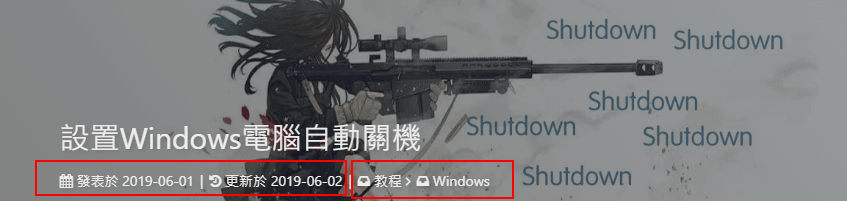
|
||
|
||
`tags`是否显示标签
|
||
|
||
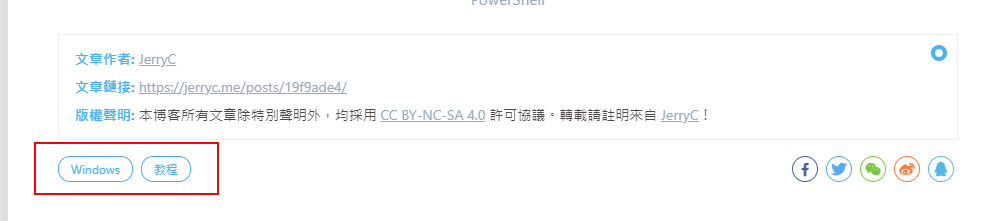
|
||
|
||
## 文章版权
|
||
|
||
为你的博客文章展示文章版权和许可协议。
|
||
|
||
配置`butterfly.yml`
|
||
|
||
```yaml
|
||
post_copyright:
|
||
enable: true
|
||
license: CC BY-NC-SA 4.0
|
||
license_url: https://creativecommons.org/licenses/by-nc-sa/4.0/
|
||
```
|
||
|
||

|
||
|
||
## 文章打赏
|
||
|
||
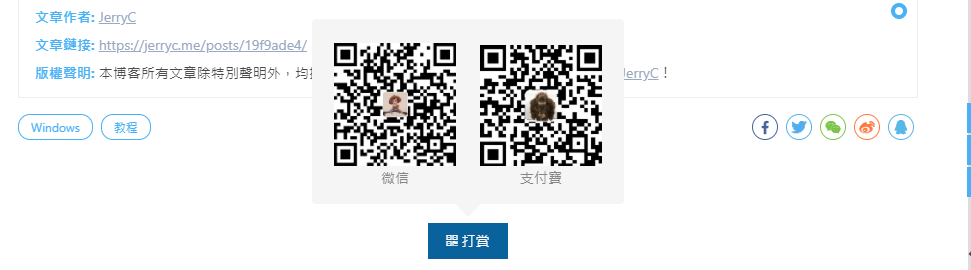
在你每篇文章的结尾,可以添加打赏按钮。相关二维码可以自行配置
|
||
|
||
配置`butterfly.yml`
|
||
|
||
```yaml
|
||
reward:
|
||
enable: true
|
||
QR_code:
|
||
- itemlist:
|
||
img: /img/wechat.jpg
|
||
text: 微信
|
||
- itemlist:
|
||
img: /img/alipay.jpg
|
||
text: 支付宝
|
||
```
|
||
|
||
|
||
|
||
## 头像
|
||
|
||
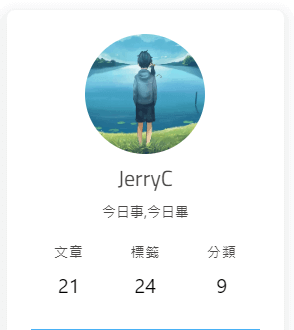
配置`butterfly.yml`
|
||
|
||
```yaml
|
||
avatar: https://xxxx/avatar.png
|
||
```
|
||
|
||
|
||
|
||
## TOC
|
||
|
||
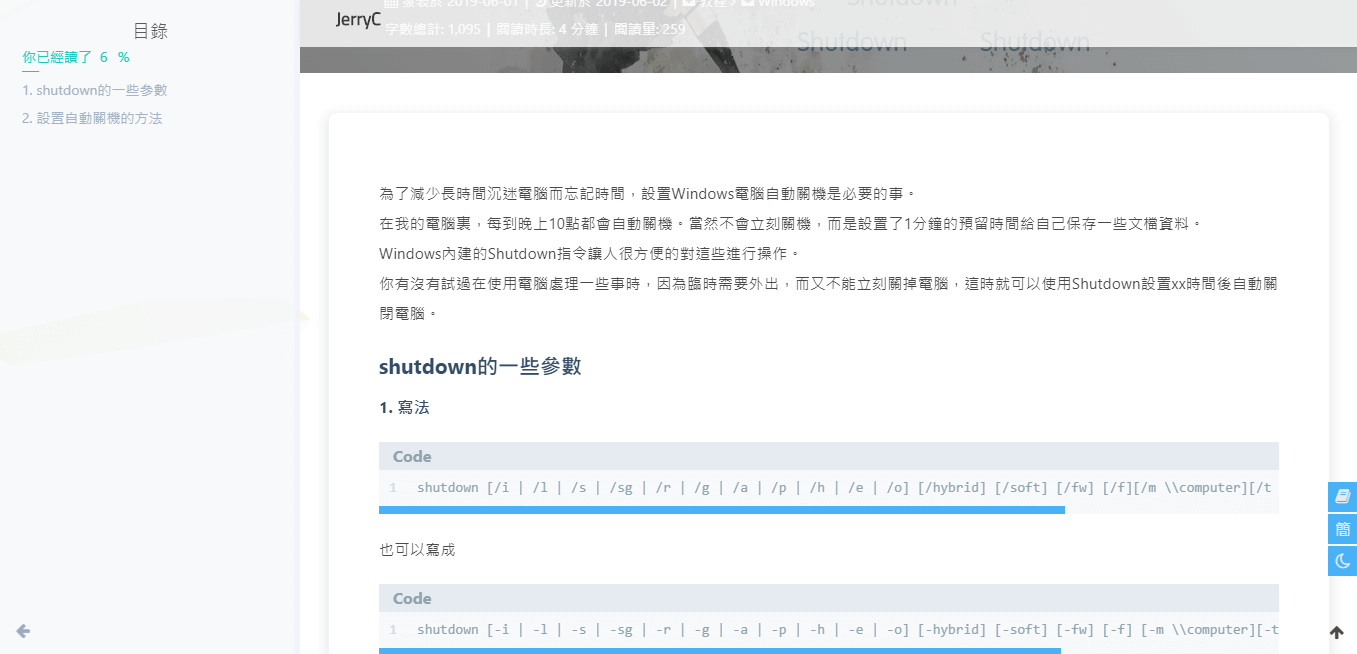
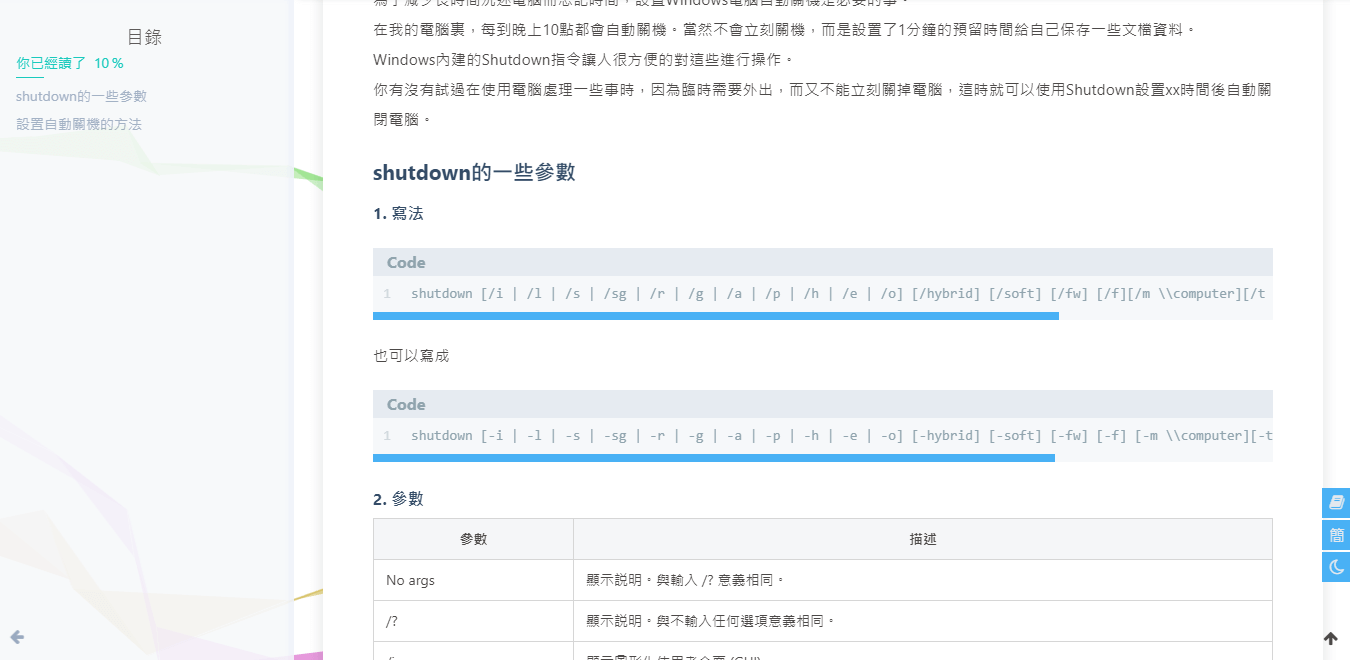
在文章页,会有一个目录,用于显示TOC
|
||
|
||
配置`butterfly.yml`
|
||
|
||
```yaml
|
||
toc:
|
||
enable: true
|
||
number: true #显示章节数字
|
||
```
|
||
|
||
### 为特定的文章配置是否显示TOC和特定的目录章节数字
|
||
|
||
在你的文章`md`文件的头部,加入`toc_number`和`toc`项,并配置`true`或者`false`即可。
|
||
|
||
`toc`是否显示文章TOC
|
||
|
||
`toc_number` 是否显示章节数
|
||
|
||
配置之后你的特定的文章将会拥有它自己的目录数字的显示与否,而不会受全局的配置影响。
|
||
|
||
> `enable: true`
|
||
|
||
|
||
|
||
> `number: false`
|
||
|
||
|
||
|
||
### 设置是否自动打开TOC
|
||
|
||
可选择进入文章页面时,是否自动打开sidebar显示TOC
|
||
|
||
```YAML
|
||
auto_open_sidebar:
|
||
enable: true
|
||
```
|
||
|
||
## 博客年份
|
||
|
||
`since`是一个来展示你站点起始时间的选项。它位于页面的最底部。
|
||
|
||
配置`butterfly.yml`
|
||
|
||
```yaml
|
||
since: 2018
|
||
```
|
||
|
||

|
||
|
||
## 页脚自定义文本
|
||
|
||
`footer_custom_text`是一个给你用来在页脚自定义文本的选项。通常你可以在这里写声明文本等。支持 HTML。
|
||
|
||
配置`butterfly.yml`
|
||
|
||
```yaml
|
||
footer_custom_text: Hi, welcome to my <a href="https://jerryc.me/">blog</a>!
|
||
```
|
||
|
||

|
||
|
||
## ICP
|
||
|
||
对于部分有备案的域名,可以在ICP配置显示。
|
||
|
||
配置`butterfly.yml`
|
||
|
||
```yaml
|
||
ICP:
|
||
enable: true
|
||
url: http://www.beian.miit.gov.cn/state/outPortal/loginPortal.action
|
||
text: 粤ICP备xxxx
|
||
```
|
||
|
||
## 夜间模式
|
||
|
||
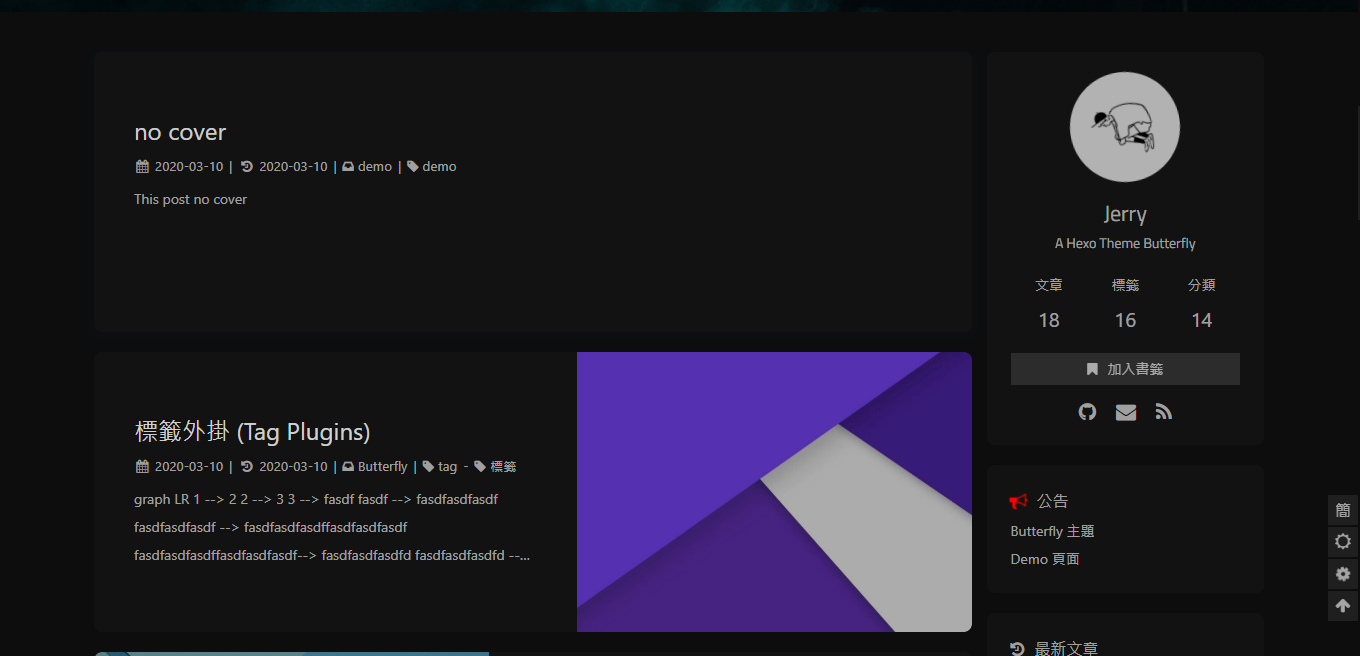
右下角会有夜间模式按钮
|
||
|
||
配置`butterfly.yml`
|
||
|
||
```yaml
|
||
nightshift:
|
||
enable: true
|
||
```
|
||
|
||
|
||
|
||
## 阅读模式
|
||
|
||
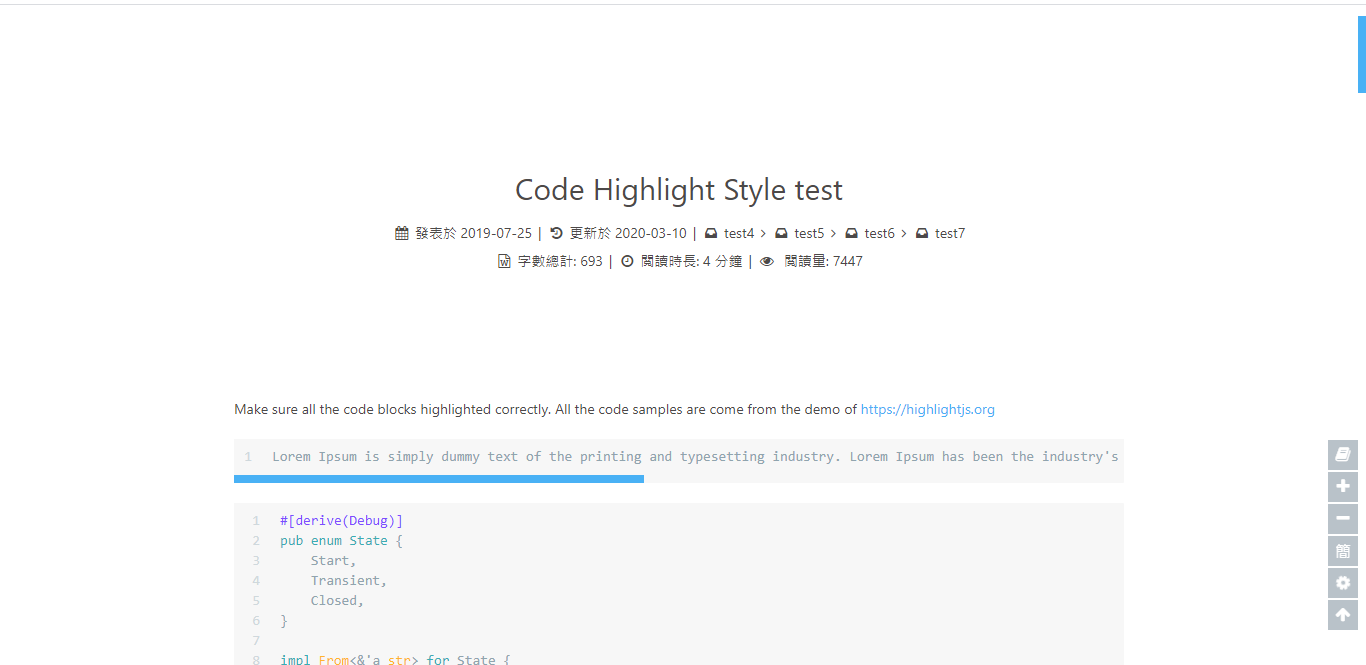
阅读模式下会去掉除文章外的内容,避免干扰阅读。
|
||
|
||
只会出现在文章页面,右下角会有阅读模式按钮。
|
||
|
||
配置`butterfly.yml`
|
||
|
||
```yaml
|
||
readmode:
|
||
enable: true
|
||
```
|
||
|
||
|
||
|
||
## 简繁转换
|
||
|
||
简体繁体互换
|
||
|
||
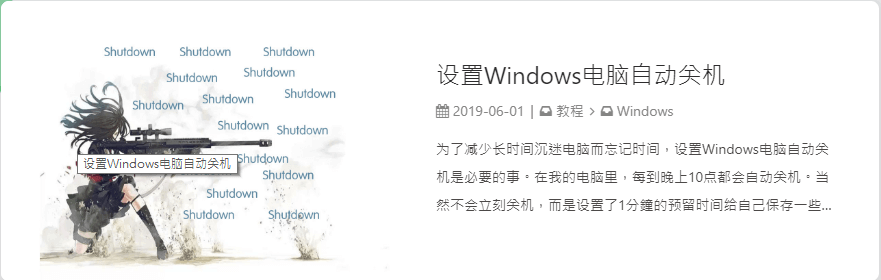
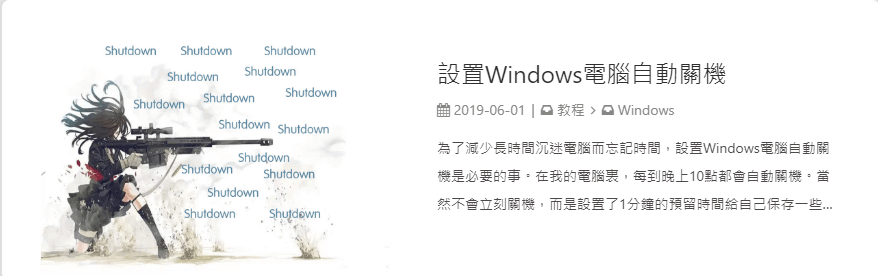
右下角会有简繁转换按钮。
|
||
|
||
配置`butterfly.yml`
|
||
|
||
```yaml
|
||
translate:
|
||
enable: true
|
||
# 默认按钮显示文字(网站是简体,应设置为'default: 繁')
|
||
default: 简
|
||
#网站默认语言,1: 繁体中文, 2: 简体中文
|
||
defaultEncoding: 1
|
||
#延迟时间,若不在前, 要设定延迟翻译时间, 如100表示100ms,默认为0
|
||
translateDelay: 0
|
||
#博客网址
|
||
cookieDomain: "https://jerryc.me/"
|
||
#当文字是简体时,按钮显示的文字
|
||
msgToTraditionalChinese: "繁"
|
||
#当文字是繁体时,按钮显示的文字
|
||
msgToSimplifiedChinese: "简"
|
||
```
|
||
|
||
> 简体
|
||
|
||
|
||
|
||
> 繁体
|
||
|
||
|
||
|
||
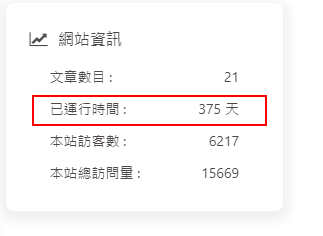
## 运行时间
|
||
|
||
网页已运行时间
|
||
|
||
配置`butterfly.yml`
|
||
|
||
```yaml
|
||
runtimeshow:
|
||
enable: true
|
||
start_date: 6/7/2018 00:00:00
|
||
##网页开通时间
|
||
#格式: 月/日/年 时间
|
||
#也可以写成 年/月/日 时间
|
||
```
|
||
|
||
|
||
|
||
## 侧边排版
|
||
|
||
可自行决定哪个项目需要显示
|
||
|
||
> 至少需要显示一个
|
||
|
||
配置`butterfly.yml`
|
||
|
||
```yaml
|
||
aside:
|
||
card_author: true
|
||
card_announcement: true
|
||
card_recent_post: true
|
||
card_categories: true
|
||
card_tags: true
|
||
card_archives: true
|
||
card_webinfo: true
|
||
```
|
||
|
||
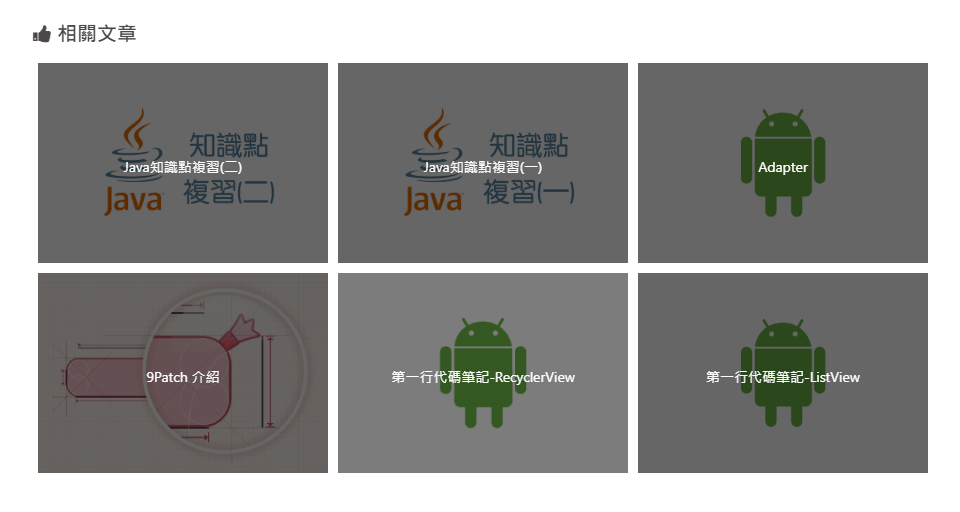
## 相关文章
|
||
|
||
相关文章推荐的原理是根据文章tags的比重来推荐
|
||
|
||
配置`butterfly.yml`
|
||
|
||
```yaml
|
||
related_post:
|
||
enable: true
|
||
limit: 6 # 显示推荐文章数目
|
||
```
|
||
|
||
|
||
|
||
## 自定义字体
|
||
|
||
可自行设置字体的`font-family`
|
||
|
||
配置`butterfly.yml`
|
||
|
||
```yaml
|
||
font:
|
||
enable: true
|
||
font-family: Lato, Helvetica Neue For Number, -apple-system, BlinkMacSystemFont, Segoe UI, Roboto, PingFang SC, Hiragino Sans GB,"Microsoft JhengHei", "MicrMicrosoft YaHei", Helvetica Neue, Helvetica, Arial, sans-serif
|
||
code-font: consolas, Menlo, "PingFang SC", "Microsoft JhengHei","Microsoft YaHei", monospace, Helvetica Neue For Number
|
||
```
|
||
|
||
## 网站副标题
|
||
|
||
可设置主页中显示的网站副标题或者喜欢的座右铭。
|
||
|
||
配置`butterfly.yml`
|
||
|
||
```yaml
|
||
subtitle:
|
||
enable: true
|
||
sub1: 今日事,今日毕
|
||
sub2: Never put off till tomorrow what you can do today
|
||
```
|
||
|
||

|
||
|
||
# 主题页面
|
||
|
||
## Page Front-matter
|
||
|
||
```markdown
|
||
---
|
||
title:
|
||
date:
|
||
type: (tags,link,categories这三个页面需要配置)
|
||
comments: (是否需要显示评论,默认true)
|
||
description:
|
||
top_img: (设置顶部图)
|
||
---
|
||
```
|
||
|
||
## Post Front-matter
|
||
|
||
```markdown
|
||
---
|
||
title:
|
||
date:
|
||
tags:
|
||
categories:
|
||
keywords:
|
||
description:
|
||
top_img: (除非特定需要,可以不写)
|
||
comments 是否显示评论(除非设置false,可以不写)
|
||
cover: 缩略图
|
||
toc: 是否显示toc (除非特定文章设置,可以不写)
|
||
toc_number: 是否显示toc数字 (除非特定文章设置,可以不写)
|
||
---
|
||
```
|
||
|
||
## 标签页
|
||
|
||
1. 前往你的 Hexo 博客的根目录
|
||
|
||
2. 输入`hexo new page tags`
|
||
|
||
3. 你会找到`source/tags/index.md`这个文件
|
||
|
||
4. 修改这个文件:
|
||
|
||
```markdown
|
||
---
|
||
title: 标签
|
||
date: 2018-01-05 00:00:00
|
||
type: "tags"
|
||
---
|
||
```
|
||
|
||
## 分类页
|
||
|
||
1. 前往你的 Hexo 博客的根目录
|
||
|
||
2. 输入`hexo new page categories`
|
||
|
||
3. 你会找到`source/categories/index.md`这个文件
|
||
|
||
4. 修改这个文件:
|
||
|
||
```markdown
|
||
---
|
||
title: 分类
|
||
date: 2018-01-05 00:00:00
|
||
type: "categories"
|
||
---
|
||
```
|
||
|
||
## 相册
|
||
|
||
为你的博客创建一个相册页!
|
||
|
||
### 创建相册页
|
||
|
||
1. 前往你的 Hexo 博客的根目录
|
||
|
||
2. 输入`hexo new page gallery`
|
||
|
||
3. 你会找到`source/gallery/index.md`这个文件
|
||
|
||
4. 修改这个文件:
|
||
|
||
```markdown
|
||
---
|
||
title: Gallery
|
||
date: 2018-01-05 00:00:00
|
||
type: "gallery"
|
||
---
|
||
```
|
||
|
||
Butterfly 提供了一个叫做`gallery`的标签,让你能够在 markdown 文件里生成`gallery-item`。
|
||
|
||
修改你刚刚创建的`source/gallery/index.md`,并加上`gallery` 标签。
|
||
|
||
`gallery img-url [title]`
|
||
|
||
例子:
|
||
|
||
```markdown
|
||
---
|
||
title: Gallery
|
||
date: 2018-01-05 00:00:00
|
||
type: "gallery"
|
||
---
|
||
{% gallery https://ws1.sinaimg.cn/large/8700af19gy1fp5i6o2vghj20ea0eajse melody %}
|
||
{% gallery https://user-images.githubusercontent.com/12621342/37325500-23e8f77c-26c9-11e8-8e24-eb4346f1fff5.png background %}
|
||
{% gallery https://ws1.sinaimg.cn/large/8700af19gy1fp5i64zaxqj20b40b474b demo1 %}
|
||
{% gallery https://ws1.sinaimg.cn/large/8700af19ly1fn2h26q32uj21120kudqq demo2 %}
|
||
{% gallery https://ws1.sinaimg.cn/large/8700af19ly1fnhdaimi40j218g0p0dic demo3 %}
|
||
{% gallery https://ws1.sinaimg.cn/large/8700af19ly1fn2i5kjh2pj21120kuncd %}
|
||
```
|
||
> gallery-item 也拥有 fancybox 的效果!
|
||
|
||

|
||
|
||
## 友情链接
|
||
|
||
为你的博客创建一个友情链接!
|
||
|
||
### 创建友情链接页面
|
||
|
||
1. 前往你的 Hexo 博客的根目录
|
||
2. 输入 `hexo new page link`
|
||
3. 你会找到`source/link/index.md`这个文件
|
||
4. 修改这个文件:
|
||
|
||
```markdown
|
||
---
|
||
title: 友情链接
|
||
date: 2018-06-07 22:17:49
|
||
type: "link"
|
||
---
|
||
```
|
||
|
||
### 友情链接添加
|
||
|
||
在Hexo博客目录中的`source/_data`,创建一个文件`link.yml`
|
||
|
||
```yml
|
||
class:
|
||
class_name: 友情链接
|
||
link_list:
|
||
1:
|
||
name: xxx
|
||
link: https://blog.xxx.com
|
||
avatar: https://cdn.xxxxx.top/avatar.png
|
||
descr: xxxxxxx
|
||
2:
|
||
name: xxxxxx
|
||
link: https://www.xxxxxxcn/
|
||
avatar: https://xxxxx/avatar.png
|
||
descr: xxxxxxx
|
||
|
||
class2:
|
||
class_name: 链接无效
|
||
link_list:
|
||
1:
|
||
name: 梦xxx
|
||
link: https://blog.xxx.com
|
||
avatar: https://xxxx/avatar.png
|
||
descr: xxxx
|
||
2:
|
||
name: xx
|
||
link: https://www.axxxx.cn/
|
||
avatar: https://x
|
||
descr: xx
|
||
```
|
||
|
||
### 友情链接界面设置
|
||
|
||
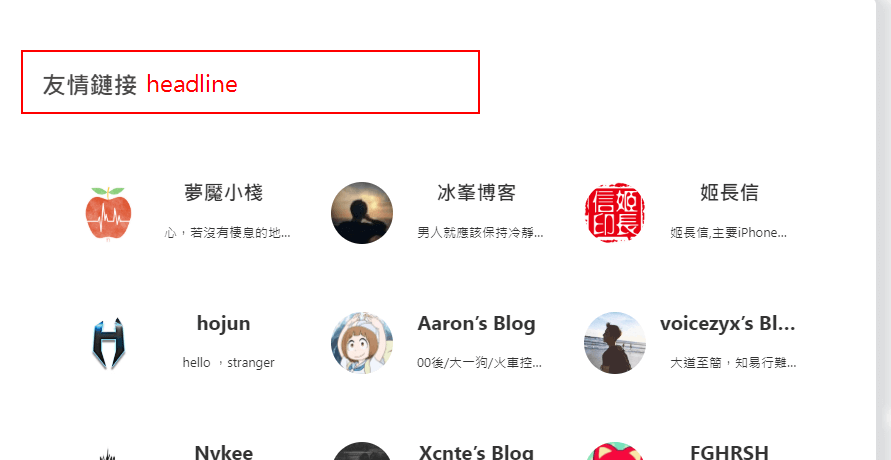
需要添加友情链接,可以在`Butterfly.yml`配置
|
||
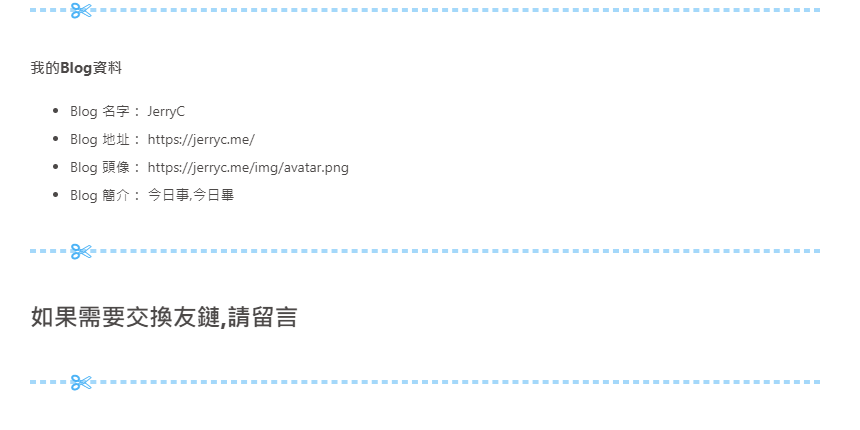
可在友情链接上写上自己的个人资料,方便其他人添加。
|
||
|
||
```yaml
|
||
Flink:
|
||
headline: 友情链接
|
||
info_headline: 我的Blog资料
|
||
name: Blog 名字: JerryC
|
||
address: Blog 地址: https://jerryc.me/
|
||
avatar: Blog 头像: https://jerryc.me/img/avatar.png
|
||
info: Blog 简介: 今日事,今日毕
|
||
comment: 如果需要交换友链,请留言
|
||
```
|
||
|
||
|
||
|
||
|
||
# 第三方支持
|
||
|
||
## 评论
|
||
|
||
>只能选择一个评论服务商
|
||
|
||
### Disqus
|
||
|
||
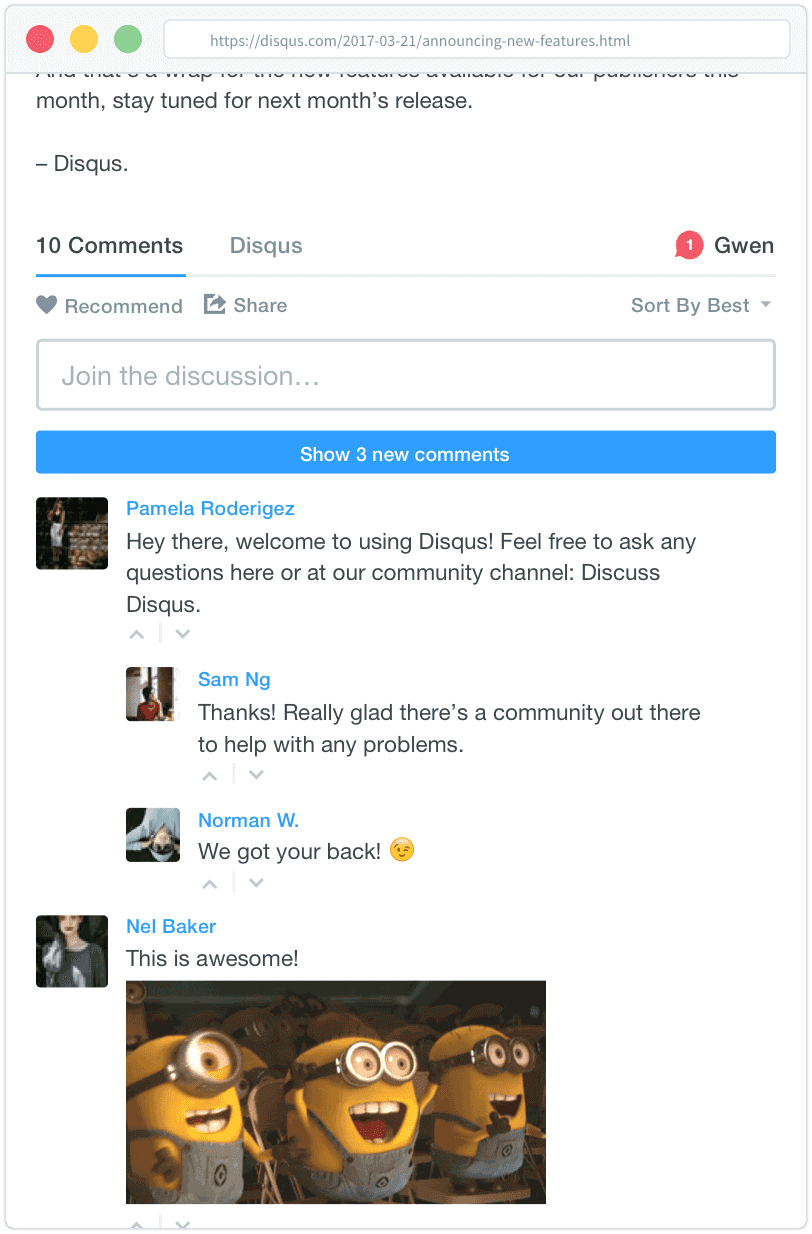
注册 [disqus](https://disqus.com/),配置你自己的 disqus,然后在`Butterfly`里开启它。
|
||
|
||
配置`butterfly.yml`
|
||
|
||
```yaml
|
||
disqus:
|
||
enable: true # or false
|
||
shortname: 你的disqus的 short-name
|
||
```
|
||
|
||
|
||
|
||
### Laibili(来必力)
|
||
|
||
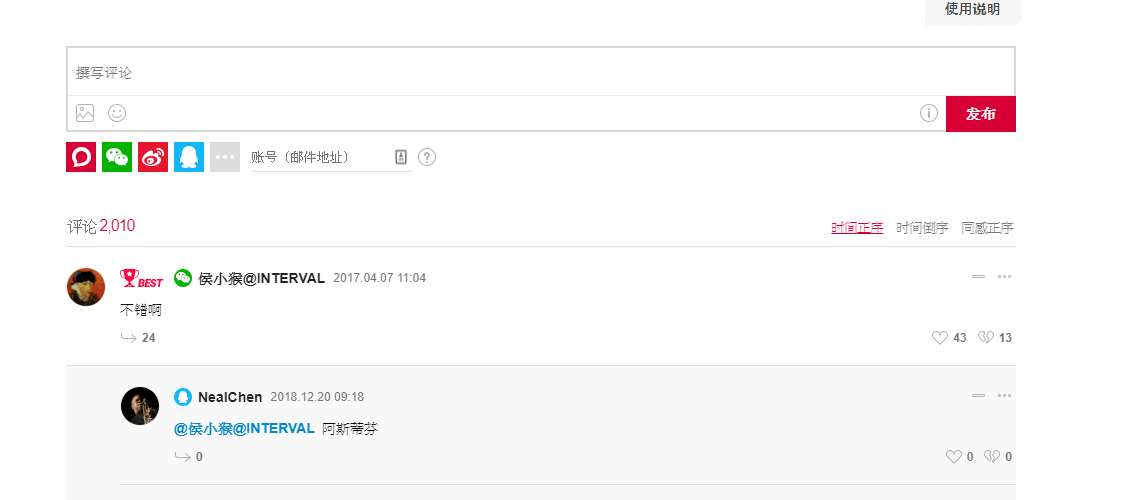
注册[来必力](http://www.laibili.com.cn/),配置你自己的来必力设置,然后在`Butterfly`里开启它。
|
||
|
||
配置`butterfly.yml`
|
||
|
||
```yaml
|
||
laibili:
|
||
enable: true # or false
|
||
uid: 你的laibili的uid
|
||
```
|
||
|
||
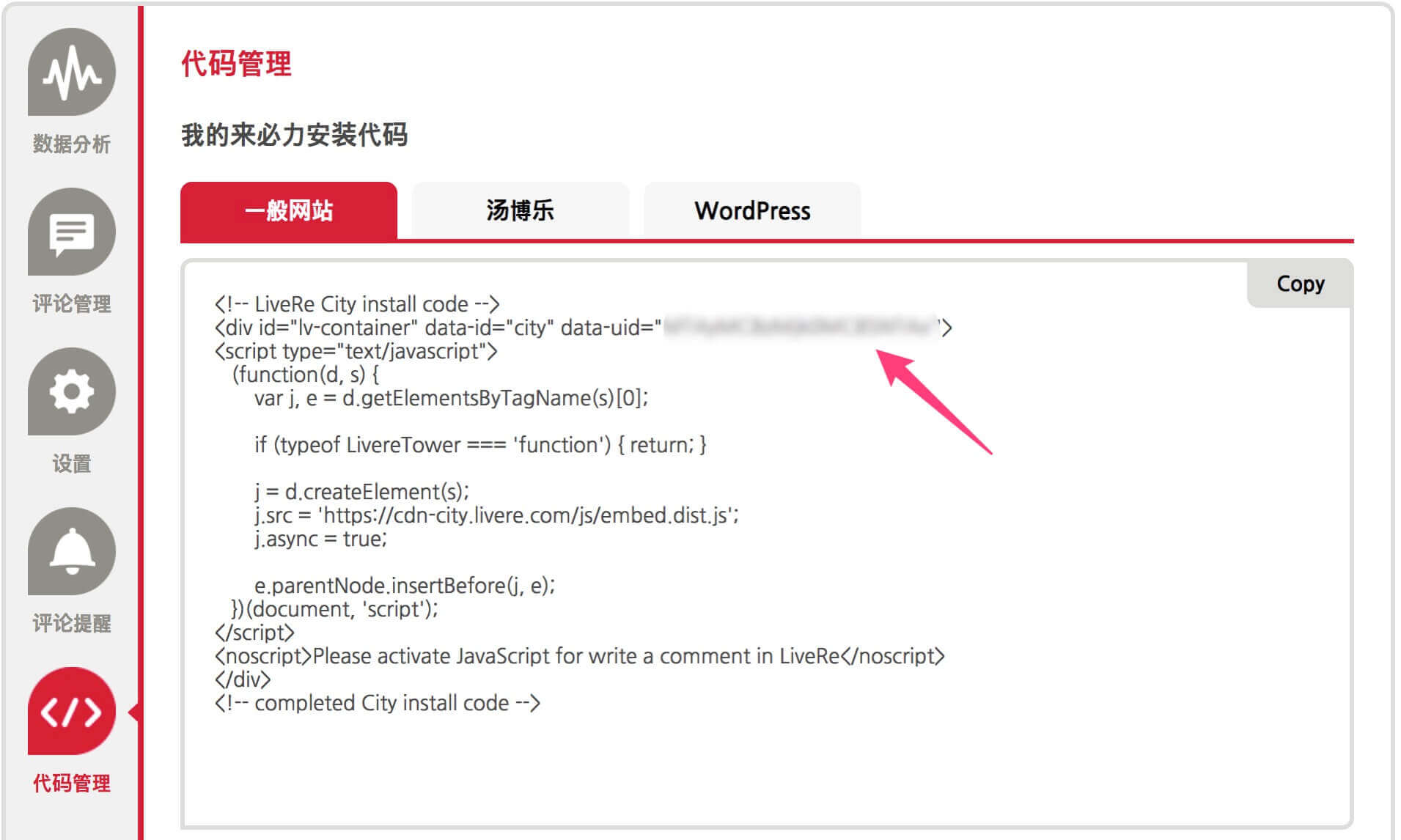
laibili 的 uid 你能在这里找到:
|
||
|
||
|
||
|
||
|
||
|
||
### Gitment
|
||
|
||
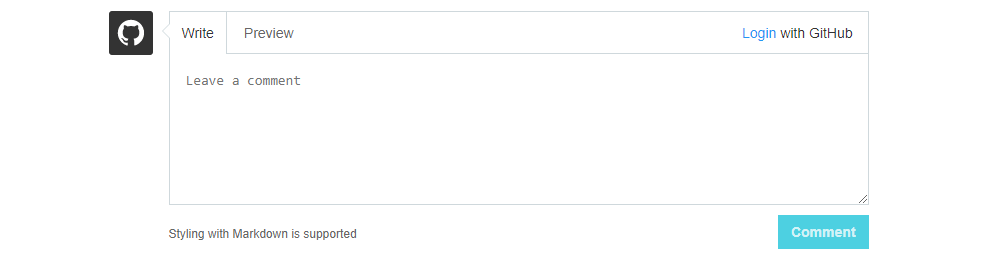
遵循 [gitment](https://github.com/imsun/gitment)的指示去获取你的 github Oauth 应用的 client id 和 secret 值。
|
||
|
||
然后配置`butterfly.yml`:
|
||
|
||
```yaml
|
||
gitment:
|
||
enable: true # or false
|
||
owner: 你的github用户名
|
||
repo: 你的github仓库
|
||
client_id: 你的client id
|
||
client_secret: 你的client secret
|
||
```
|
||
|
||
|
||
|
||
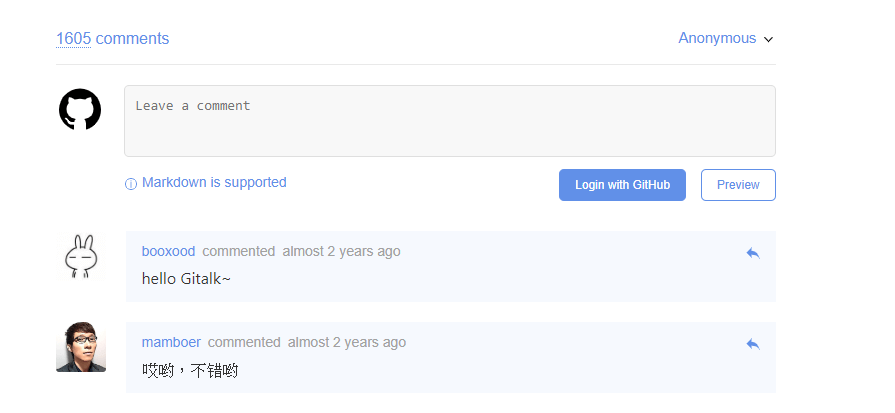
### Gitalk
|
||
|
||
遵循 [gitalk](https://github.com/gitalk/gitalk)的指示去获取你的 github Oauth 应用的 client id 和 secret 值。以及查看它的相关配置说明。
|
||
|
||
然后配置`butterfly.yml`:
|
||
|
||
```yaml
|
||
gitalk:
|
||
enable: true
|
||
client_id: 你的client id
|
||
client_secret: 你的client secret
|
||
repo: 你的github仓库
|
||
owner: 你的github用户名
|
||
admin: 该仓库的拥有者或协作者
|
||
```
|
||
|
||
|
||
|
||
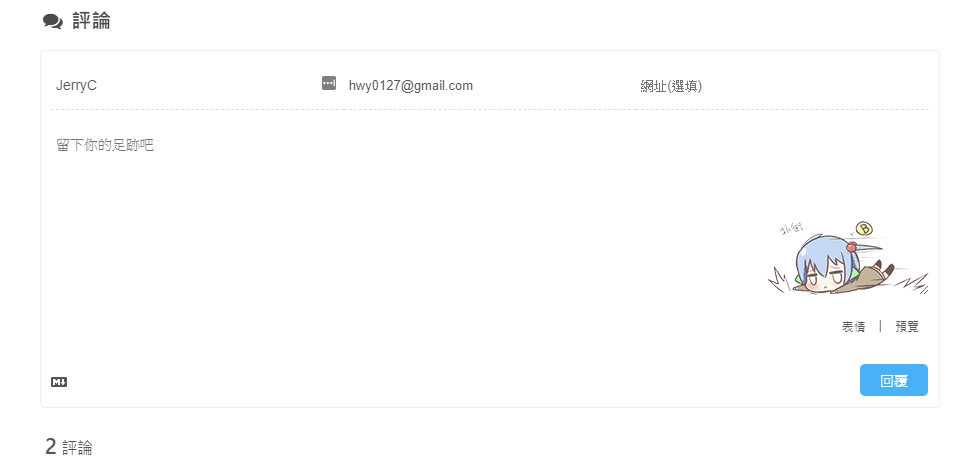
### Valine
|
||
|
||
遵循 [Valine](https://github.com/xCss/Valine)的指示去配置你的 LeanCloud 应用。以及查看相应的配置说明。
|
||
|
||
然后配置`butterfly.yml`:
|
||
|
||
```yaml
|
||
valine:
|
||
enable: false # if you want use valine,please set this value is true
|
||
appId: # leancloud application app id
|
||
appKey: # leancloud application app key
|
||
notify: false # valine mail notify (true/false) https://github.com/xCss/Valine/wiki
|
||
verify: false # valine verify code (true/false)
|
||
pageSize: 10 # comment list page size
|
||
avatar: monsterid # gravatar style https://valine.js.org/#/avatar
|
||
lang: en # i18n: zh-cn/en/tw
|
||
placeholder: Please leave your footprints # valine comment input placeholder(like: Please leave your footprints )
|
||
guest_info: nick,mail,link #valine comment header inf
|
||
```
|
||
|
||
|
||
|
||
## 分享
|
||
|
||
> 只能选择一个分享服务商
|
||
|
||
### AddThis
|
||
|
||
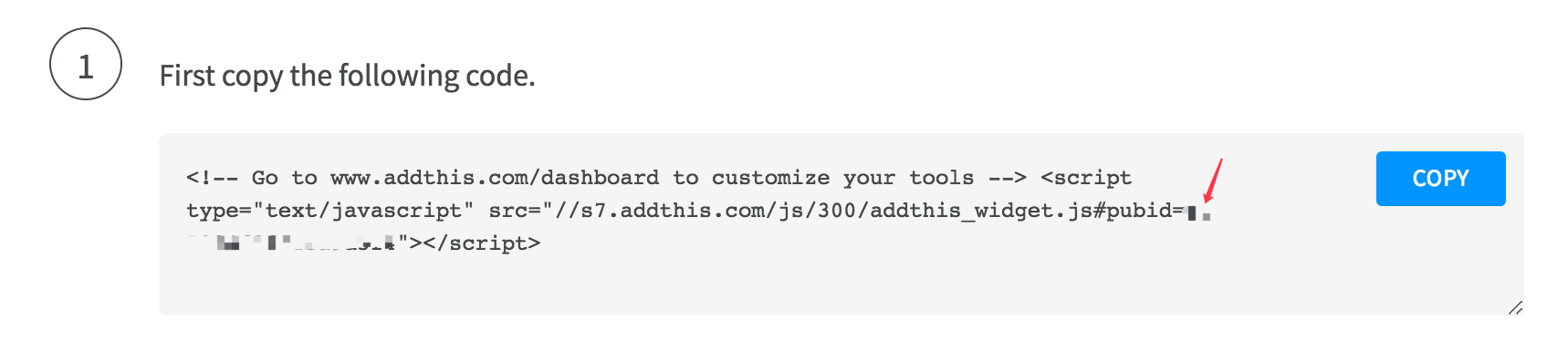
> 找到你的 pub-id
|
||
|
||
|
||
|
||
配置`butterfly.yml`
|
||
|
||
```yaml
|
||
addThis:
|
||
enable: true # or false
|
||
pubid: 你的pub-id
|
||
```
|
||
|
||
### Sharejs
|
||
|
||
如果你不知道 [sharejs](https://github.com/overtrue/share.js/),看看它的说明。
|
||
|
||
配置`butterfly.yml`
|
||
|
||
```yaml
|
||
sharejs:
|
||
enable: true
|
||
sites: facebook,twitter,wechat,weibo,qq #想要显示的内容
|
||
```
|
||
|
||

|
||
|
||
### Addtoany
|
||
|
||
可以到[addtoany](https://www.addtoany.com/)查看使用说明
|
||
|
||
```yaml
|
||
addtoany:
|
||
enable: false
|
||
item: # 显示的内容
|
||
- facebook
|
||
- twitter
|
||
- wechat
|
||
- sina_weibo
|
||
- facebook_messenger
|
||
- email
|
||
- copy_link
|
||
```
|
||
|
||

|
||
|
||
## 搜索系统
|
||
|
||
### Algolia
|
||
|
||
1. 你需要安装 [hexo-algolia](https://github.com/oncletom/hexo-algolia)或 [hexo-algoliasearch](https://github.com/LouisBarranqueiro/hexo-algoliasearch). 根据它们的说明文档去做相应的配置。
|
||
|
||
2. 配置`butterfly.yml`
|
||
|
||
```yaml
|
||
algolia_search:
|
||
enable: true
|
||
hits:
|
||
per_page: 6
|
||
|
||
labels:
|
||
input_placeholder: Search for Posts
|
||
hits_empty: "We didn't find any results for the search: ${query}" # if there are no result
|
||
hits_stats: "${hits} results found in ${time} ms"
|
||
```
|
||
|
||
### 本地搜索
|
||
|
||
1. 你需要安装 [hexo-generator-search](https://github.com/PaicHyperionDev/hexo-generator-search). 根据它的文档去做相应配置。**注意格式只支持 xml**。
|
||
|
||
2. 配置`butterfly.yml`
|
||
|
||
```yaml
|
||
local_search:
|
||
enable: false
|
||
labels:
|
||
input_placeholder: Search for Posts
|
||
hits_empty: "We didn't find any results for the search: ${query}" # if there are no result
|
||
```
|
||
|
||
## 网站验证
|
||
|
||
如果需要搜索引擎收录网站,可能需要登录对应搜索引擎的管理平台进行提交。
|
||
各自的验证码可从各自管理平台拿到
|
||
|
||
配置`butterfly.yml`
|
||
|
||
```yaml
|
||
# Google Webmaster tools verification setting
|
||
# See: https://www.google.com/webmasters/
|
||
google_site_verification:
|
||
|
||
# Bing Webmaster tools verification setting
|
||
# See: https://www.bing.com/webmaster/
|
||
bing_site_verification:
|
||
|
||
# Yandex Webmaster tools verification setting
|
||
# See: https://webmaster.yandex.ru/
|
||
yandex_site_verification:
|
||
|
||
# Baidu Webmaster tools verification setting
|
||
# See: https://ziyuan.baidu.com/site/
|
||
baidu_site_verification:
|
||
|
||
# 360 Webmaster tools verification setting
|
||
# see http://zhanzhang.so.com/
|
||
qihu_site_verification:
|
||
```
|
||
|
||
## 分析统计
|
||
|
||
### 百度统计
|
||
|
||
1. 登录百度统计的[官方网站](https://tongji.baidu.com/web/welcome/login)
|
||
|
||
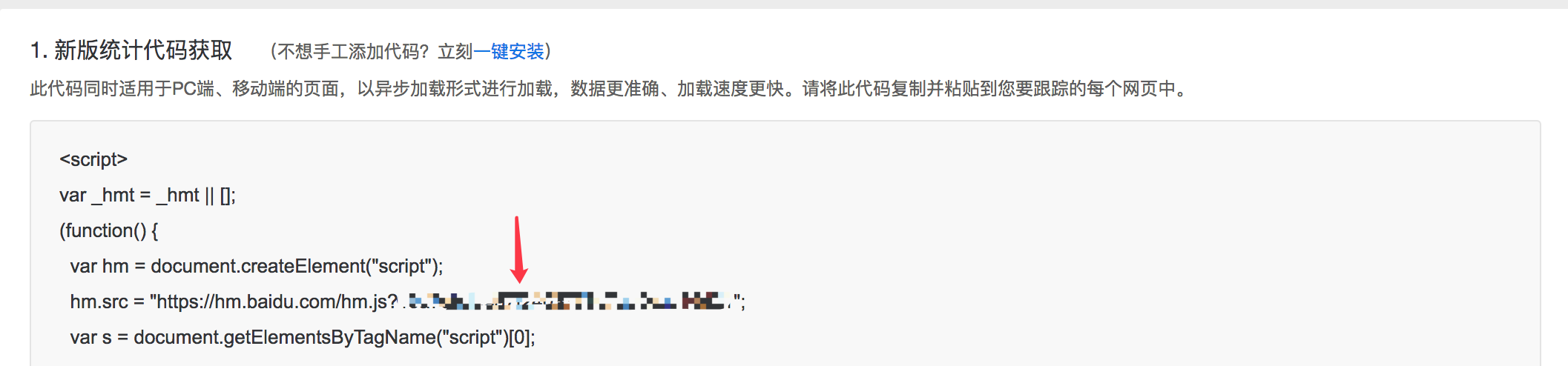
2. 找到你百度统计的统计代码
|
||
|
||
|
||
|
||
3\. 配置`butterfly.yml`
|
||
|
||
```yaml
|
||
baidu_analytics: 你的代码
|
||
```
|
||
|
||
### 谷歌分析
|
||
|
||
1. 登录谷歌分析的[官方网站](https://www.google.com/analytics/)
|
||
|
||
2. 找到你的谷歌分析的跟踪 ID
|
||
|
||

|
||
|
||
3. 配置`butterfly.yml`
|
||
|
||
```yaml
|
||
google_analytics: 你的代码 # 通常以`UA-`打头
|
||
```
|
||
|
||
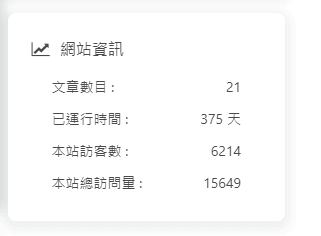
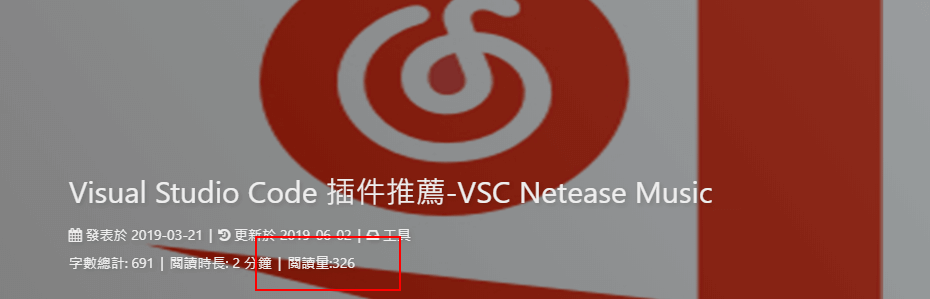
## 访问人数 (UV 和 PV)
|
||
|
||
### busuanzi
|
||
|
||
访问 busuanzi 的[官方网站](http://busuanzi.ibruce.info/)查看更多的介绍。
|
||
|
||
配置`butterfly.yml`
|
||
|
||
```yaml
|
||
busuanzi:
|
||
site_uv: true
|
||
site_pv: true
|
||
page_pv: true
|
||
```
|
||
|
||
|
||
|
||
|
||
|
||
## MathJax
|
||
|
||
> 建议使用 KaTex 获得更好的效果,下文有介绍!
|
||
|
||
配置`butterfly.yml`:
|
||
|
||
```yaml
|
||
mathjax:
|
||
enable: true # or false
|
||
cdn: https://cdn.bootcss.com/mathjax/2.7.2/MathJax.js?config=TeX-AMS-MML_HTMLorMML # required
|
||
```
|
||
|
||
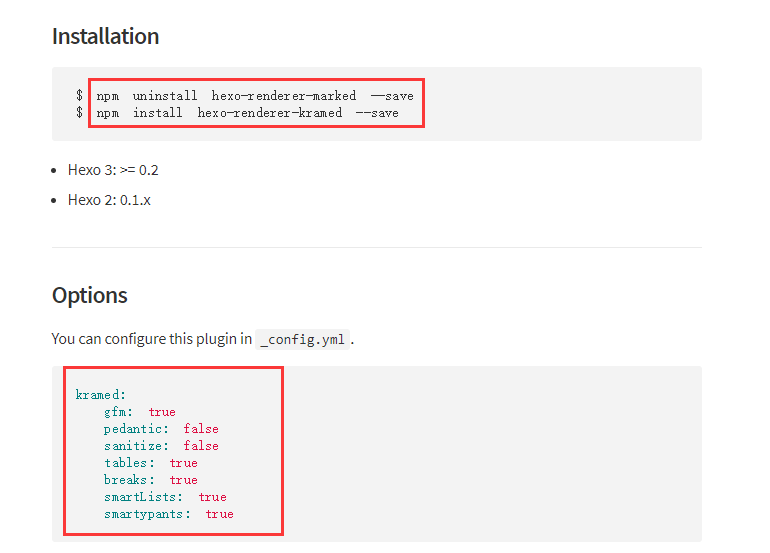
然后你需要修改一下默认的`markdown`渲染引擎来实现 MathJax 的效果。
|
||
|
||
查看: [hexo-renderer-kramed](https://www.npmjs.com/package/hexo-renderer-kramed)
|
||
|
||
以下操作在你 hexo 博客的目录下 (**不是 Butterfly 的目录!**):
|
||
|
||
|
||
|
||
效果:
|
||
|
||

|
||
|
||
## KaTeX
|
||
|
||
首先禁用`MathJax`(如果你配置过 MathJax 的话),然后修改你的`butterfly.yml`以便加载`katex.min.css`:
|
||
|
||
```yaml
|
||
katex:
|
||
enable: true
|
||
cdn:
|
||
css: https://cdn.jsdelivr.net/npm/katex@latest/dist/katex.min.css
|
||
```
|
||
|
||
你不需要添加`katex.min.js`来渲染数学方程。相应的你需要卸载你之前的 hexo 的 markdown 渲染器以及`hexo-math`,然后安装新的`hexo-renderer-markdown-it-plus`:
|
||
|
||
```yaml
|
||
# 替换 `hexo-renderer-kramed` 或者 `hexo-renderer-marked` 等hexo的markdown渲染器
|
||
# 你可以在你的package.json里找到hexo的markdwon渲染器,并将其卸载
|
||
npm un hexo-renderer-marked --save
|
||
|
||
# or
|
||
|
||
npm un hexo-renderer-kramed --save
|
||
|
||
# 卸载 `hexo-math`
|
||
npm un hexo-math --save
|
||
|
||
# 然后安装 `hexo-renderer-markdown-it-plus`
|
||
npm i @upupming/hexo-renderer-markdown-it-plus --save
|
||
```
|
||
|
||
注意到 [`hexo-renderer-markdown-it-plus`](https://github.com/CHENXCHEN/hexo-renderer-markdown-it-plus)已经无人持续维护, 所以我们使用 [`@upupming/hexo-renderer-markdown-it-plus`](https://github.com/upupming/hexo-renderer-markdown-it-plus)。 这份 fork 的代码使用了 [`@neilsustc/markdown-it-katex`](https://github.com/yzhang-gh/markdown-it-katex)同时它也是 VSCode 的插件 [Markdown All in One](https://github.com/yzhang-gh/vscode-markdown)所使用的, 所以我们可以获得最新的 KaTex 功能例如 `\tag{}`。
|
||
|
||
你还可以通过 [`@neilsustc/markdown-it-katex`](https://github.com/yzhang-gh/markdown-it-katex)控制 KaTeX 的设置,所有可配置的选项参见 https://katex.org/docs/options.html。 比如你想要禁用掉 KaTeX 在命令行上输出的冗长的警告信息,你可以在根目录的 `_config.yml` 中使用下面的配置将 `strict` 设置为 false:
|
||
|
||
```yaml
|
||
markdown_it_plus:
|
||
plugins:
|
||
- plugin:
|
||
name: '@neilsustc/markdown-it-katex'
|
||
enable: true
|
||
options:
|
||
strict: false
|
||
```
|
||
|
||
当然,你还可以利用这个特性来定义一些自己常用的 `macros`。
|
||
|
||
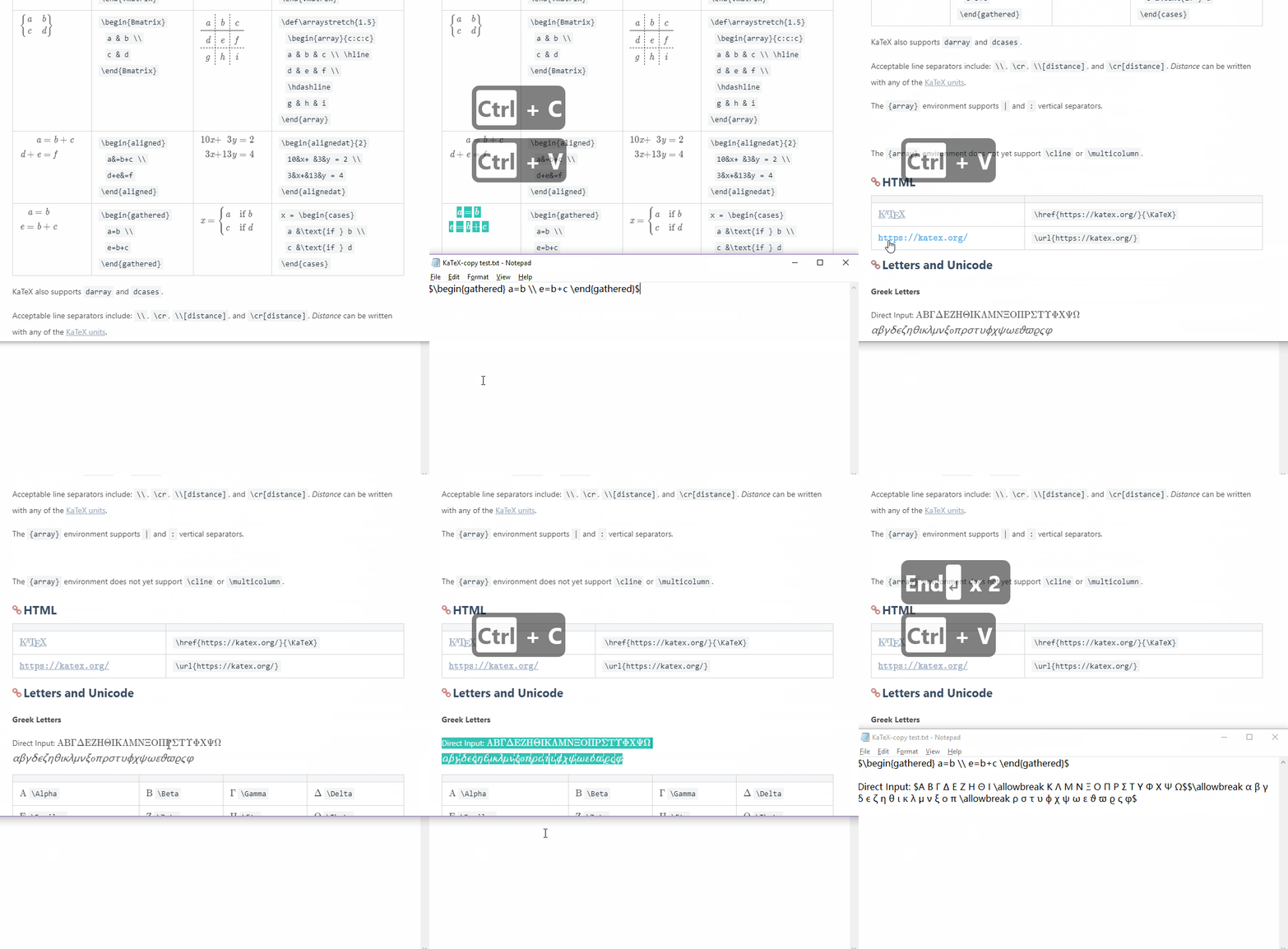
因为 KaTeX 更快更轻量,因此没有 MathJax 的功能多(比如右键菜单)。为那些使用 MathJax 的用户,我们也为 KaTeX 默认添加了 [_Copy As TeX Code_](https://github.com/upupming/katex-copytex)的功能。
|
||
|
||
|
||
|
||
## 特效
|
||
|
||
### 打字效果
|
||
|
||
打字效果[activate-power-mode](https://github.com/disjukr/activate-power-mode)
|
||
|
||
配置`butterfly.yml`
|
||
|
||
```yaml
|
||
activate_power_mode:
|
||
enable: true
|
||
```
|
||
|
||

|
||
|
||
### 静止彩带
|
||
|
||
好看的彩带背景,可设置每次刷新更换彩带,或者每次点击更换彩带
|
||
|
||
配置`butterfly.yml`
|
||
|
||
```yaml
|
||
canvas_ribbon:
|
||
enable: false
|
||
size: 150
|
||
alpha: 0.6
|
||
zIndex: -1
|
||
click_to_change: false #设置是否每次点击都更换彩带
|
||
```
|
||
|
||
相关配置可查看[canvas_ribbon](https://github.com/hustcc/ribbon.js)
|
||
|
||
### 动态彩带
|
||
|
||
好看的彩带背景,会飘动
|
||
|
||
配置`butterfly.yml`
|
||
|
||
```yaml
|
||
canvas_ribbon_piao:
|
||
enable: true
|
||
```
|
||
|
||

|
||
|
||
### 烟花效果
|
||
|
||
配置`butterfly.yml`
|
||
|
||
```yaml
|
||
fireworks:
|
||
enable: true
|
||
```
|
||

|
||
|
||
## PWA
|
||
|
||
要为`Butterfly`配上 PWA 特性, 你需要如下几个步骤:
|
||
|
||
1. 打开 hexo 工作目录
|
||
|
||
2. `npm install hexo-offline --save` 或者 `yarn add hexo-offline`
|
||
|
||
3. 修改`_config.yml` 在站点`_config.yml`中增加以下内容。
|
||
|
||
```yaml
|
||
# offline config passed to sw-precache.
|
||
offline:
|
||
maximumFileSizeToCacheInBytes: 10485760 # 缓存的最大文件大小,以字节为单位
|
||
staticFileGlobs:
|
||
- public/**/*.{js,html,css,png,jpg,gif,svg,webp,eot,ttf,woff,woff2}
|
||
# 静态文件合集,如果你的站点使用了例如webp格式的文件,请将文件类型添加进去。
|
||
stripPrefix: public
|
||
verbose: true
|
||
runtimeCaching:
|
||
# CDNs - should be cacheFirst, since they should be used specific versions so should not change
|
||
- urlPattern: /* # 如果你需要加载CDN资源,请配置该选项,如果没有,可以不配置。
|
||
handler: cacheFirst
|
||
options:
|
||
origin: your_websie_url # 可替换成你的 url
|
||
```
|
||
|
||
更多内容请查看 [hexo-offline](https://github.com/JLHwung/hexo-offline)的官方文档
|
||
|
||
4. 在`butterfly.yml`中开启 pwa 选项。
|
||
|
||
```yaml
|
||
pwa:
|
||
enable: true
|
||
manifest: /img/pwa/manifest.json
|
||
theme_color: "#fff"
|
||
apple_touch_icon: /img/pwa/apple-touch-icon.png
|
||
favicon_32_32: /img/pwa/32.png
|
||
favicon_16_16: /img/pwa/16.png
|
||
mask_icon: /img/pwa/safari-pinned-tab.svg
|
||
```
|
||
|
||
5. 在创建`source/`目录中创建`manifest.json`文件。
|
||
|
||
```json
|
||
{
|
||
"name": "string", //应用全称
|
||
"short_name": "Junzhou", //应用简称
|
||
"theme_color": "#49b1f5", //匹配浏览器的地址栏颜色
|
||
"background_color": "#49b1f5",//加载应用时的背景色
|
||
"display": "standalone",//首选显示模式 其他选项有:fullscreen,minimal-ui,browser
|
||
"scope": "/",
|
||
"start_url": "/",
|
||
"icons": [ //该数组指定icons图标参数,用来时适配不同设备(需为png,至少包含一个192px*192px的图标)
|
||
{
|
||
"src": "images/pwaicons/36.png", //图标文件的目录,需在source/目录下自行创建。
|
||
"sizes": "36x36",
|
||
"type": "image/png"
|
||
},
|
||
{
|
||
"src": "images/pwaicons/48.png",
|
||
"sizes": "48x48",
|
||
"type": "image/png"
|
||
},
|
||
{
|
||
"src": "images/pwaicons/72.png",
|
||
"sizes": "72x72",
|
||
"type": "image/png"
|
||
},
|
||
{
|
||
"src": "images/pwaicons/96.png",
|
||
"sizes": "96x96",
|
||
"type": "image/png"
|
||
},
|
||
{
|
||
"src": "images/pwaicons/144.png",
|
||
"sizes": "144x144",
|
||
"type": "image/png"
|
||
},
|
||
{
|
||
"src": "images/pwaicons/192.png",
|
||
"sizes": "192x192",
|
||
"type": "image/png"
|
||
},
|
||
{
|
||
"src": "images/pwaicons/512.png",
|
||
"sizes": "512x512",
|
||
"type": "image/png"
|
||
}
|
||
],
|
||
"splash_pages": null //配置自定义启动动画。
|
||
}
|
||
```
|
||
|
||
你也可以通过 [Web App Manifest](https://app-manifest.firebaseapp.com/)快速创建`manifest.json`。(Web App Manifest 要求至少包含一个 512*512 像素的图标)
|
||
|
||
6. 可以通过`Chrome`插件`Lighthouse`检查 PWA 配置是否生效以及配置是否正确。
|
||
|
||
- 打开博客页面
|
||
- 启动`Lighthouse`插件 (`Lighthouse`插件要求至少包含一个 512*512 像素的图标)
|
||
|
||
关于 PWA(渐进式增强 Web 应用)的更多内容请参阅 [Google Tools for Web Developers](https://developers.google.com/web/tools/lighthouse/audits/address-bar)
|
||
|
||
## 字数统计
|
||
|
||
要为`Butterfly`配上字数统计特性, 你需要如下几个步骤:
|
||
|
||
1. 打开 hexo 工作目录
|
||
|
||
2. `npm install hexo-wordcount --save` or `yarn add hexo-wordcount`
|
||
|
||
3. 配置`butterfly.yml`:
|
||
|
||
```yaml
|
||
wordcount:
|
||
enable: true
|
||
```
|
||
|
||

|
||
|
||
## 文章置顶
|
||
|
||
要为你一些文章置顶,你需要如下步骤:
|
||
|
||
1. 打开 hexo 工作目录
|
||
2. `npm uninstall hexo-generator-index --save` 然后 `npm install hexo-generator-index-pin-top --save`
|
||
3. 你要在文章的`front-matter`区域里添加`top: True`属性来把这篇文章置顶。
|
||
4. 你可以参考 [hexo-generator-index-pin-top](https://github.com/netcan/hexo-generator-index-pin-top)这个仓库来了解更多细节。
|
||
|
||
举个例子:
|
||
|
||
你的某篇文章开头如下:
|
||
|
||
```markdown
|
||
title: xxxx
|
||
tags:
|
||
- xxx
|
||
date: 2018-08-08 08:08:08
|
||
---
|
||
// ....
|
||
```
|
||
|
||
现在把`top: True`加进去:
|
||
|
||
```markdown
|
||
title: xxxx
|
||
tags:
|
||
- xxx
|
||
date: 2018-08-08 08:08:08
|
||
top: True
|
||
---
|
||
// ....
|
||
``` |