biss Hexo https://blog.biss.click/ All rights reserved 2026, biss Bi's Blog 2026-03-15T10:15:08.065Z biss 这里用C++进行编程,发现菜鸟教程只有python的版本,那就记录一下。

图片读取与展示

1
2
3
4
5
6
7
8
9
10
11
12
13
14
// 读取图像
#include<opencv2/opencv.hpp>
#include<iostream>

using namespace std;
using namespace cv;

int main(){
Mat src = imread("../img/1.png");
imshow("input",src);
waitKey(0);
destroyAllWindows();
return 0;
}

图像基本操作

读取像素

需要用到三维向量数组Vect3b,这里需要注意的是,Opencv是BGR而不是我们常用的RGB。

1
2
3
4
5
6
7
8
9
10
11
12
13
14
15
16
17
18
19
20
21
22
23
24
// 读取像素
#include<opencv2/opencv.hpp>
#include<iostream>

using namespace std;
using namespace cv;

int main()
{
string image_path = "../img/1.png";
Mat image = imread(image_path);

if (image.empty()) {
cout << "错误:无法加载图像,请检查路径是否正确。" << endl;
return -1;
}

Vec3b pixel_value = image.at<Vec3b>(100, 150);

cout << "B: " << (int)pixel_value[0] << " "
<< "G: " << (int)pixel_value[1] << " "
<< "R: " << (int)pixel_value[2] << endl;

}

修改像素

1
2
3
4
5
6
7
8
9
10
11
12
13
14
15
16
17
18
19
20
21
22
23
24
25
26
27
28
// 修改像素
#include<opencv2/opencv.hpp>
#include<iostream>

using namespace std;
using namespace cv;

int main()
{
string image_path = "../img/1.png";
Mat image = imread(image_path);
Mat result = image.clone();

if (image.empty()) {
cout << "错误:无法加载图像,请检查路径是否正确。" << endl;
return -1;
}

Rect roi_rect(0, 0, 100, 100);
Mat roi = result(roi_rect);
roi.setTo(Scalar(0, 255, 0));
imshow("Original (Unchanged)", image);
imshow("Modified Copy", result);
waitKey(0);

return 0;

}
1
2
3
4
5
6
7
8
9
10
11
12
13
14
15
16
17
18
19
20
21
22
23
24
25
26
27
28
29
30
31
32
33
34
35
36
37
38
39
40
#include <opencv2/opencv.hpp>
#include <iostream>

int main() {
// 读取图像
cv::Mat img = cv::imread("../img/1.png");
if (img.empty()) {
std::cout << "无法读取图像" << std::endl;
return -1;
}

// 1. 缩放
cv::Mat resized_img;
cv::resize(img, resized_img, cv::Size(200, 200));
cv::imshow("resized_img", resized_img);

// 2. 旋转
cv::Mat rotated_img, M_rot;
cv::Point2f center(img.cols / 2.0, img.rows / 2.0);
M_rot = cv::getRotationMatrix2D(center, 45, 1.0);
cv::warpAffine(img, rotated_img, M_rot, img.size());
cv::imshow("rotated_img", rotated_img);

// 3. 平移
cv::Mat translated_img;
cv::Mat M_trans = (cv::Mat_<float>(2, 3) << 1, 0, 100, 0, 1, 50);
cv::warpAffine(img, translated_img, M_trans, img.size());
cv::imshow("translated_img", translated_img);

// 4. 翻转
cv::Mat flipped_img;
cv::flip(img, flipped_img, 1);
cv::imshow("flipped", flipped_img);

// 显示结果
cv::imshow("Original", img);
cv::waitKey(0);

return 0;
}
1
2
3
4
5
6
7
8
9
10
11
12
13
14
15
16
17
18
19
20
21
22
23
24
25
26
27
28
29
30
31
32
33
34
35
36
37
38
39
// 图像通道分离与合并
#include<opencv2/opencv.hpp>
#include<iostream>

using namespace std;
using namespace cv;

int main()
{
string image_path = "../img/1.png";
Mat image = imread(image_path);
Mat result = image.clone();
// 定义向量数组接收通道
vector<Mat> channels;
// 拆分
split(result,channels);

Mat b = channels[0];
Mat g = channels[1];
Mat r = channels[2];

imshow("Blue Channel (Grayscale)", channels[0]);
imshow("Green Channel (Grayscale)", channels[1]);
imshow("Red Channel (Grayscale)", channels[2]);

// merge
Mat merged_img;
vector<cv::Mat> channels_to_merge;
channels_to_merge.push_back(b);
channels_to_merge.push_back(g);
channels_to_merge.push_back(r);

merge(channels_to_merge, merged_img);
imshow("merged",merged_img);

waitKey(0);

return(0);
}
]]>
https://blog.biss.click/posts/e8f95ead/ 2026-03-15T01:56:51.000Z 这里用C++进行编程,发现菜鸟教程只有python的版本,那就记录一下。

图片读取与展示

opencv基础操作 2026-03-15T10:15:08.065Z
biss 引言

不知道为什么我们专业看起来与计算机八竿子打不着,竟然要学opencv,那就来记录一下吧!

Ubuntu 篇

Ubuntu因为有完善的包管理体系,所以配环境相对简单。

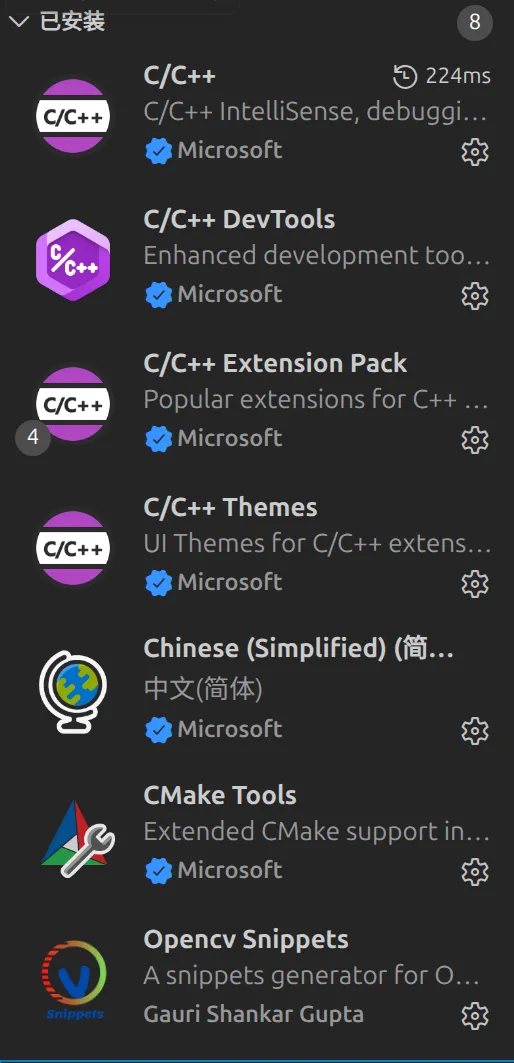
先安装vscode,当然也可以不安装,只是个编辑器;

到这里下载deb格式的软件包,然后dpkg安装即可。可以安装这些扩展:

接下来安装编译器

1
2
3
4
5
6
7
8
9
10
# 先更新软件包
apt update
apt upgrade -y
# 安装C/C++编译器
apt install gcc g++
# 安装opencv
apt install -y mesa-utils
apt install -y libopencv-dev
apt install -y opencv
apt install -y python3-opencv #Python opencv

然后就可以了。

Windows 篇

Windows 下需要安装Visual Studio,比较简单,官网下载安装就行。选择使用C++桌面开发就行。
下载opencv,在下边网站下载Windows安装包,

下载后是一个自解压包,解压路径设置成自己想要的路径,
把安装路径添加到系统环境变量中,例如D:\Opencv\opencv\build\x64\vc16\bin
然后应该就没问题了。

]]>
https://blog.biss.click/posts/6e3332b/ 2026-03-14T03:48:36.000Z 引言

不知道为什么我们专业看起来与计算机八竿子打不着,竟然要学opencv,那就来记录一下吧!

配置opencv 2026-03-15T10:15:08.065Z
biss Bitwarden 是一款开源、端到端加密的密码管理器,支持 Windows、macOS、Linux、Android、iOS 以及几乎所有主流浏览器。
它可以帮你:

  • 安全存储密码、银行卡、笔记、密钥等敏感信息
  • 全设备自动同步
  • 一键自动填充账号密码
  • 生成高强度随机密码
  • 检测弱密码、重复密码、泄露密码

之前一直使用浏览器自带的密码管理器,跨平台不太好用,所以自建一个Bitwarden服务器。
但是我们一般用Vaultwarden,占用更小,有一些Bitwarden的商业功能。

1
2
3
4
5
6
7
8
9
10
11
12
services:
vaultwarden:
image: vaultwarden/server:latest
container_name: vaultwarden
restart: unless-stopped
environment:
DOMAIN: "https://vw.domain.tld" #更改成自己的域名
volumes:
- ./vw-data/:/data/
ports:
- 127.0.0.1:8000:80

然后使用nignx进行反向代理,然后就可以尽情享用了。

]]>
https://blog.biss.click/posts/7baa41fc/ 2026-02-25T03:09:23.000Z Bitwarden 是一款开源、端到端加密的密码管理器,支持 Windows、macOS、Linux、Android、iOS]]> 自建bitwarden服务 2026-03-15T10:15:08.065Z
biss 最近自建了gitea,所以把renovatebot也自建一下,毕竟renovatebot可以自动更新依赖,但是它不对自建git提供服务。
这是docker compose文件:

1
2
3
4
5
6
7
8
9
10
11
12
services:
renovate:
image: renovate/renovate:latest
environment:
RENOVATE_PLATFORM: 'gitea'
RENOVATE_ENDPOINT: '你的git api地址'
RENOVATE_TOKEN: 'token'
RENOVATE_AUTODISCOVER: 'true'
RENOVATE_GIT_AUTHOR: Renovate Bot <bot@biss.click>
RENOVATE_USERNAME: renovate-bot
volumes:
- ./renovate-data:/tmp/renovate

可以新建一个renovate用户来专门管理,然后登录这个账户创建一个登录token。然后再需要使用这个的仓库添加这个用户为协作者就可以了。
这个docker容器在运行后会自动退出,这是正常的。
可以在系统crontab新建一个定时任务,这样就可以自动运行更新。

1
cd /www/compose/renovatebot && docker compose run --rm renovate
]]>
https://blog.biss.click/posts/56f57c0b/ 2026-02-23T02:49:17.000Z 最近自建了gitea,所以把renovatebot也自建一下,毕竟renovatebot可以自动更新依赖,但是它不对自建git提供服务。
这是docke]]>
自建renovate-bot 2026-03-15T10:15:08.065Z
biss 各位亲朋好友、合作伙伴及屏幕前的你:

值此二〇二六年蛇年来临之际,为贯彻落实“快乐至上”的核心价值观,进一步提升全体人员的幸福指数,现将有关事项通知如下:

一、各单位要切实做好“吃好喝好”保障工作,严禁在假期期间进行任何形式的emo。

二、请各有关人员在收到本通知后,务必在下方留言区留下你的新年愿望,由后台系统统一收集并祝愿其实现。

三、祝大家在新的一年里,身体健康,万事如意,所得皆所愿,所行化坦途!

]]>
https://blog.biss.click/posts/5785bd01/ 2026-02-13T22:56:18.000Z 各位亲朋好友、合作伙伴及屏幕前的你:

值此二〇二六年蛇年来临之际,为贯彻落实“快乐至上”的核心价值观,进一步提升全体人员的幸福指数,现将有关事项通知如下:

一、各单位要切实做好“吃好喝好”保障工作,严禁在假期期间进行任何形式的emo。

<]]>
新年快乐! 2026-03-15T10:15:08.065Z
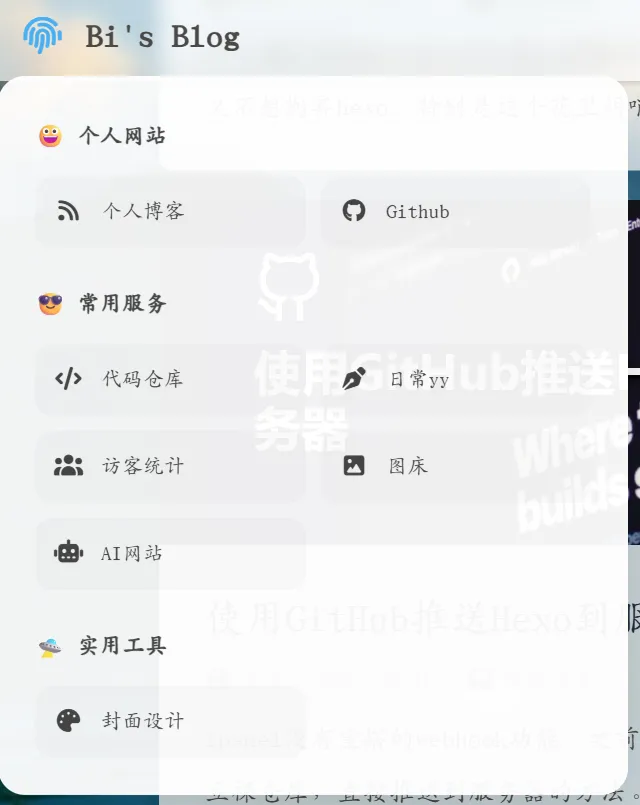
biss 看到柳神的网站有这种菜单,但是没有写魔改教程,只好自己慢慢摸索了。

预计做好后是这种效果:

示意图

首先,修改\themes\butterfly\layout\includes\header\nav.pug:

1
2
3
4
5
6
7
8
9
10
11
12
13
14
15
16
17
18
19
20
21
22
23
24
25
26
27
28
29
30
31
32
33
34
35
36
37
38
39
40
41
42
43
44
45
46
47
48
49
50
51
nav#nav
//- 左侧区域:包含指纹菜单和网站名
span#blog-info
#ls-menu-container
i.fas.fa-fingerprint
#ls-menu-panel
.ls-section
.ls-title 😀 个人网站
.ls-grid
a(href="/") #[i.fas.fa-rss] 个人博客
a(href="https://github.com/bishshi") #[i.fab.fa-github] Github
.ls-section
.ls-title 😎 常用服务
.ls-grid
a(href="https://git.biss.click/biss") #[i.fas.fa-code] 代码仓库
a(href="https://mm.biss.click") #[i.fas.fa-pen-nib] 日常yy
a(href="https://statstic.biss.click") #[i.fas.fa-users] 访客统计
a(href="https://pic.biss.click") #[i.fas.fa-image] 图床
a(href="https://chat.biss.click") #[i.fas.fa-robot] AI网站
.ls-section
.ls-title 🛸 实用工具
.ls-grid
a(href="https://cover.biss.click") #[i.fas.fa-palette] 封面设计

a.nav-site-title(href=url_for('/'))
if theme.nav.logo
img.site-icon(src=url_for(theme.nav.logo) alt='Logo')
if theme.nav.display_title
span.site-name=config.title

//- 中间区域:关键!必须在 nav 下一级,以便 JS 切换类名
if globalPageType === 'post' && theme.nav.display_post_title
a.nav-page-title(href='javascript:void(0);' onclick='btf.scrollToDest(0, 500)')
span.site-name=(page.title || config.title)

//- 右侧区域
#nav-right
if theme.menu
#menus
!= partial('includes/header/menu_item', {}, {cache: true})

if theme.search.use || true
#random-post-button
a.site-page.social-icon#random-post-link(href='javascript:void(0);' onclick='randomPost()')
i.fas.fa-solid.fa-shuffle
#search-button
a.site-page.social-icon.search-typesense-trigger
i.fas.fa-search.fa-fw
#toggle-menu
span.site-page
i.fas.fa-bars.fa-fw

在合适的目录下新建nav.css(例如\themes\butterfly\source\css\nav.css),这份css是磨砂玻璃的样式:

1
2
3
4
5
6
7
8
9
10
11
12
13
14
15
16
17
18
19
20
21
22
23
24
25
26
27
28
29
30
31
32
33
34
35
36
37
38
39
40
41
42
43
44
45
46
47
48
49
50
51
52
53
54
55
56
57
58
59
60
61
62
63
64
65
66
67
68
69
70
71
72
73
74
75
76
77
78
79
80
81
82
83
84
85
86
87
88
89
90
91
92
93
94
95
96
97
98
99
100
101
102
103
104
105
106
107
108
109
110
111
112
113
114
115
116
117
118
119
120
121
122
123
124
125
126
127
128
129
130
131
132
133
134
135
136
137
138
139
140
141
142
143
144
145
146
147
148
149
150
151
152
153
154
155
156
157
158
159
160
161
162
163
164
165
166
167
168
169
170
171
172
173
174
175
176
177
178
179
180
181
182
183
184
185
186
187
188
189
190
191
192
193
194
195
196
197
198
199
200
201
202
203
#nav-right{
flex:1 1 auto;
justify-content: flex-end;
margin-left: auto;
display: flex;
flex-wrap:nowrap;
}

/* 导航栏居中 */

#sidebar #sidebar-menus .menus_items .menus_item {
margin: 10px 0;
}
#sidebar #sidebar-menus .menus_items a.site-page {
padding-left: 0;
}
#sidebar #sidebar-menus .menus_items .site-page {
position: relative;
display: block;
padding: 6px 30px 6px 22px;
color: var(--font-color);
font-size: 1.15em;
border: var(--style-border-always);
background: var(--icat-card-bg);
font-size: 14px;
border-radius: 12px;
}
#sidebar #sidebar-menus .menus_items .site-page i:first-child {
text-align: left;
padding-left: 10px;
}

#nav #menus {
display: flex;
justify-content: center;
width: 100%;
position: absolute;
left: 0;
margin: 0;
transform: translateZ(0);
}
#nav #blog-info {
flex-wrap: nowrap;
display: flex;
align-items: center;
z-index: 102;
max-width: fit-content;
}
@media screen and (max-width: 900px) {
#nav {
padding: 0 15px;
}
#nav-group {
padding: 0 0.2rem;
}
#rightside {
right: -42px;
}
}
/* IPAD菜单栏调整 */

/* 1. 容器溢出穿透 */
#nav, #blog-info, #nav-group {
overflow: visible !important;
}

#ls-menu-container {
position: relative !important;
display: inline-flex !important;
align-items: center;
height: 100%;
padding: 0 15px;
cursor: pointer !important;
z-index: 2000 !important;
}

/* 2. 悬浮面板:宽大且高不透明度 */
#ls-menu-panel {
position: absolute !important;
top: 100% !important;
left: 0 !important;
margin-top: 15px !important;
width: 420px;
padding: 24px;
border-radius: 18px;

/* 高不透明度磨砂玻璃 (0.9) */
background: rgba(255, 255, 255, 0.95) !important;
backdrop-filter: blur(20px) saturate(180%) !important;
-webkit-backdrop-filter: blur(20px) saturate(180%) !important;

border: 1px solid rgba(255, 255, 255, 0.5) !important;
box-shadow: 0 20px 50px rgba(0, 0, 0, 0.18) !important;

opacity: 0 !important;
visibility: hidden !important;
transform: translateY(12px) !important;
transition: all 0.3s cubic-bezier(0.4, 0, 0.2, 1) !important;
z-index: 999999 !important;
cursor: default;
}

/* 3. 透明感应桥梁 */
#ls-menu-panel::before {
content: "";
position: absolute;
top: -20px;
left: 0;
right: 0;
height: 25px;
background: transparent !important;
}

/* 4. 触发效果 */
#ls-menu-container:hover #ls-menu-panel {
opacity: 1 !important;
visibility: visible !important;
transform: translateY(0) !important;
}

#ls-menu-container:hover i.fa-fingerprint {
color: #49b1f5;
transform: scale(1.1);
}

/* 5. 内部网格:保持两列 */
.ls-section { margin-bottom: 22px; }
.ls-section:last-child { margin-bottom: 0; }
.ls-title {
color: #333;
font-weight: 800;
font-size: 15px;
margin-bottom: 12px;
opacity: 0.9;
}

.ls-grid {
display: grid !important;
grid-template-columns: repeat(2, 1fr); /* 恢复为两列 */
gap: 10px;
}

.ls-grid a {
color: #444 !important;
font-size: 14px !important;
padding: 10px 12px;
border-radius: 12px;
display: flex;
align-items: center;
transition: all 0.2s ease;
background: rgba(0, 0, 0, 0.02);
}

.ls-grid a:hover {
background: #49b1f5 !important;
color: #fff !important;
transform: translateX(4px); /* 悬停时轻微右移,增加动感 */
}

.ls-grid a i {
margin-right: 12px;
width: 20px;
text-align: center;
font-size: 15px;
}

/* 6. 深色模式适配 */
[data-theme='dark'] #ls-menu-panel {
background: rgba(30, 30, 30, 0.95) !important;
border-color: rgba(255, 255, 255, 0.1) !important;
}
[data-theme='dark'] .ls-title { color: #eee; }
[data-theme='dark'] .ls-grid a {
color: #ccc !important;
background: rgba(255, 255, 255, 0.05);
}

#nav.show-title .nav-page-title {
display: flex !important;
opacity: 1 !important;
visibility: visible !important;
position: absolute !important;
left: 50% !important;
transform: translateX(-50%) !important;
white-space: nowrap !important;
z-index: 1000 !important;
}

#nav.show-title #menus,
#nav.show-title .nav-site-title {
opacity: 0 !important;
visibility: hidden !important;
pointer-events: none !important;
}

#nav .nav-page-title {
display: none;
transition: opacity 0.3s ease;
}

#nav #blog-info {
overflow: visible !important;
}

然后在_config.butterfly.yml里面引用该css

1
- <link rel="stylesheet" href="/css/nav.css">

然后重新构建应该就可以看到效果了。

]]>
https://blog.biss.click/posts/7e921903/ 2026-02-09T23:11:14.000Z 看到柳神的网站有这种菜单,但是没有写魔改教程,只好自己慢慢摸索了。

添加网站左上角菜单 2026-03-15T10:15:08.065Z
biss 在上一篇文章中已经完成了gitea的安装
那么博客源码迁移倒是没问题,直接git remote add origin就行,但是action文件就有些变更。
这是我修改的action文件:

1
2
3
4
5
6
7
8
9
10
11
12
13
14
15
16
17
18
19
20
21
22
23
24
25
26
27
28
29
30
31
32
33
34
35
36
37
38
39
40
41
42
43
44
45
46
47
48
49
50
51
52
53
54
55
56
name: 自动部署
on:
push:
branches:
- master
release:
types:
- published
workflow_dispatch:
env:
TZ: Asia/Shanghai
jobs:
deploy:
runs-on: ubuntu-latest
steps:
- name: 检查分支
uses: actions/checkout@v4
with:
ref: master
- name: 缓存项目 npm
id: cache-node-modules
uses: actions/cache@v3
with:
path: node_modules
key: ${{ runner.os }}-nodeModules-${{ hashFiles('package-lock.json') }}-${{ hashFiles('package.json') }}
restore-keys: |
${{ runner.os }}-nodeModules-
- name: 安装 Node
uses: actions/setup-node@v4
with:
node-version: "22.x"
- name: 安装 Hexo
run: |
npm install hexo-cli --global
- name: 安装依赖
if: steps.cache-node-modules.outputs.cache-hit != 'true'
run: |
npm install
- name: 清理文件树
run: |
npm run clean
- name: 生成静态文件并压缩
run: |
npm run build
- name: 部署
run: |
cd ./public
git init
git config user.name "${{ gitea.actor }}"
git config user.email "${{ gitea.actor }}@noreply.gitea.io"
git add .
git commit -m "${{ gitea.event.head_commit.message }}··[$(date +"%Z %Y-%m-%d %A %H:%M:%S")]"
git push --force --quiet "https://${{ gitea.actor }}:${{ secrets.DEPLOY_TOKEN }}@git.biss.click/biss/blog.git" master:page
- name: Deploy to Server
run: |
curl -k -X POST

仅供参考吧,最后面是webhook,可以自己改改。

]]>
https://blog.biss.click/posts/d2c8521/ 2026-02-07T04:30:39.000Z 在上一篇文章中已经完成了gitea的安装
那么博客源码迁移倒是没问题,直接git remote add origin就行,但是action文件就有些变更。
这是我修改的action文件:

将博客仓库转移到gitea 2026-03-15T10:15:08.065Z
biss 今天想把网站的源码转移到自建git仓,所以先来安装gitea吧(gitlab过于庞大,服务器配置不够)
PS:我的服务器为2C2G

安装gitea

这里用二进制文件安装

获取二进制文件:

1
2
3
wget -O gitea https://dl.gitea.com/gitea/1.25.4/gitea-1.25.4-linux-amd64
chmod +x gitea
cp gitea /usr/local/bin/gitea

创建用户

这一步不是必须的,但是推荐这样,用root用户很容易出问题。

1
2
3
4
5
6
7
8
9
10
11
12
13
14
15
16
17
18
19
20
# On Ubuntu/Debian:
adduser \
--system \
--shell /bin/bash \
--gecos 'Git Version Control' \
--group \
--disabled-password \
--home /home/git \
git

# On Fedora/RHEL/CentOS:
groupadd --system git
adduser \
--system \
--shell /bin/bash \
--comment 'Git Version Control' \
--gid git \
--home-dir /home/git \
--create-home \
git

创建工作目录

1
2
3
4
5
6
7
8
mkdir -p /var/lib/gitea/{custom,data,log}
chown -R git:git /var/lib/gitea/
chmod -R 750 /var/lib/gitea/
mkdir /etc/gitea
chown root:git /etc/gitea
chmod 770 /etc/gitea
chmod 750 /etc/gitea
chmod 640 /etc/gitea/app.ini

创建系统服务

直接把github上面的挪过来就可以

然后注册服务并启动

1
2
sudo systemctl enable gitea
sudo systemctl start gitea

创建数据库

可以用MySQL数据库或者PostgreSQL,创建一个数据库在web页面填写进去就行。

反向代理略过,和普通网站的反向代理配置没有什么区别。

安装runner

这个runner也不是必须的,是为了实现github的action功能;在2C2G服务器上我看运行的还可以,当然,只是这个hexo博客的自动构建,占用资源也少;
使用doker,这也是官方建议。以下是compose文件:

1
2
3
4
5
6
7
8
9
10
11
12
13
14
15

services:
runner:
image: gitea/act_runner:latest
ports:
- 8088:8088
environment:
- CONFIG_FILE=/config.yaml
- GITEA_INSTANCE_URL=https://git.biss.click
- GITEA_RUNNER_REGISTRATION_TOKEN= #替换成自己的token
volumes:
- ./config.yaml:/config.yaml
- ./data:/data
- /var/run/docker.sock:/var/run/docker.sock # 允许 Runner 调用宿主机 Docker

token在管理后台 工作流-运行器-新建运行器获取
config文件需要这样生成

1
docker run --entrypoint="" --rm -it docker.io/gitea/act_runner:latest act_runner generate-config > config.yaml

在后台工作流运行器可以看见就没问题了。

]]> https://blog.biss.click/posts/34725d47/ 2026-02-06T22:32:04.000Z 今天想把网站的源码转移到自建git仓,所以先来安装gitea吧(gitlab过于庞大,服务器配置不够)
PS:我的服务器为2C2G

安装gitea 2026-03-15T10:15:08.065Z biss 最近在构建班级博客,用ghost cms,在构建搜索时发现了typesense,所以把他移植到这个博客上。

安装typesense

直接用docker-compose:

1
2
3
4
5
6
7
8
9
10
11

services:
typesense:
image: typesense/typesense:30.1
restart: always
ports:
- "8108:8108"
volumes:
- ./typesense-data:/data
command: '--data-dir /data --api-key=填写key --enable-cors'

然后就是反向代理之类的,不过多写了。

添加数据集

1
2
3
# 先安装库
npm install hexo-generator-search
npm install typesense xml2js

然后在config.yml配置(就是把文章生成json):

1
2
3
4
search:
path: search.json
field: post
content: true

创建一个数据同步脚本sync_typesense.js:

1
2
3
4
5
6
7
8
9
10
11
12
13
14
15
16
17
18
19
20
21
22
23
24
25
26
27
28
29
30
31
32
33
34
35
36
37
38
39
40
41
42
43
44
45
46
47
48
49
50
51
52
53
54
55
56
57
58
59
60
61
62
63
64
65
66
67
68
const Typesense = require('typesense');
const fs = require('fs');
const xml2js = require('xml2js');

// --- 配置区域 ---
const CONFIG = {
apiKey: '你的Admin-API-Key', // 必须是 Admin Key
host: '你的Typesense主机地址',
port: 443,
protocol: 'https',
collectionName: 'blogs'
};

const client = new Typesense.Client({
'nodes': [{ 'host': CONFIG.host, 'port': CONFIG.port, 'protocol': CONFIG.protocol }],
'apiKey': CONFIG.apiKey,
'connectionTimeoutSeconds': 5
});

async function sync() {
try {
// 1. 读取并解析 XML
const xml = fs.readFileSync('./public/search.xml', 'utf8');
const parser = new xml2js.Parser({ explicitArray: false });
const result = await parser.parseStringPromise(xml);

// 提取文章列表 (处理单篇文章和多篇文章的情况)
let entries = result.search.entry;
if (!Array.isArray(entries)) entries = [entries];

// 格式化数据以适配 Typesense
const documents = entries.map(post => ({
title: post.title,
url: post.url,
content: post.content,
categories: post.categories ? (Array.isArray(post.categories.category) ? post.categories.category : [post.categories.category]) : [],
tags: post.tags ? (Array.isArray(post.tags.tag) ? post.tags.tag : [post.tags.tag]) : [],
}));

// 2. 检查或创建 Collection (Schema)
try {
await client.collections(CONFIG.collectionName).retrieve();
} catch (err) {
const schema = {
name: CONFIG.collectionName,
fields: [
{ name: 'title', type: 'string', locale: 'zh'},
{ name: 'content', type: 'string', locale: 'zh'},
{ name: 'url', type: 'string' },
{ name: 'categories', type: 'string[]', facet: true },
{ name: 'tags', type: 'string[]', facet: true }
]
};
await client.collections().create(schema);
console.log('Collection created!');
}

// 3. 导入数据 (使用 upsert 模式:存在则更新,不存在则创建)
console.log(`Syncing ${documents.length} posts to Typesense...`);
await client.collections(CONFIG.collectionName).documents().import(documents, { action: 'upsert' });
console.log('Sync complete!');

} catch (error) {
console.error('Sync failed:', error);
}
}

sync();

然后运行node sync_typesense.js

创建只读key

把下面代码存储成js,node运行就行。

1
2
3
4
5
6
7
8
9
10
11
12
13
14
15
16
17
18
19
20
21
22
23
24
25
26
27
const http = require('https');

const data = JSON.stringify({
"description": "Public search only key",
"actions": ["documents:search"],
"collections": ["blogs"]
});

const options = {
hostname: '', // 不要带 https://
port: 443,
path: '/keys',
method: 'POST',
headers: {
'X-TYPESENSE-API-KEY': '你的admin key',
'Content-Type': 'application/json',
'Content-Length': data.length
}
};

const req = http.request(options, res => {
res.on('data', d => { process.stdout.write(d); });
});

req.on('error', error => { console.error(error); });
req.write(data);
req.end();

博客添加搜索

config.yamlinject bottom添加:

1
2
- <script src="https://cdn.jsdmirror.com/npm/instantsearch.js@4.56.0"></script>
- <script src="https://cdn.jsdmirror.com/npm/typesense-instantsearch-adapter@2.7.0/dist/typesense-instantsearch-adapter.min.js"></script>

为了方便,我直接修改了\themes\butterfly\source\js\search\local_search.js

1
2
3
4
5
6
7
8
9
10
11
12
13
14
15
16
17
18
19
20
21
22
23
24
25
26
27
28
29
30
31
32
33
34
35
36
37
38
39
40
41
42
43
44
45
46
47
48
49
50
51
52
53
54
55
56
57
58
59
60
61
62
63
64
65
66
67
68
69
70
71
72
73
74
75
76
77
78
79
80
81
82
83
84
85
86
87
88
89
90
91
92
93
94
95
96
97
98
99
100
101
102
103
104
105
106
107
108
109
110
111
112
113
114
115
116
117
118
119
120
121
122
123
124
125
126
127
128
129
130
131
132
133
134
135
136
137
138
139
140
141
142
143
144
145
146
147
148
149
150
151
152
153
154
155
156
157
158
159
160
161
162
163
164
165
166
167
168
169
170
171
172
173
174
175
176
177
178
179
180
181
182
183
184
185
186
187
188
189
190
191
192
193
194
195
196
197
198
199
200
201
202
203
204
205
206
207
208
209
210
211
212
213
214
215
216
217
218
219
220
221
222
223
224
225
226
227
228
229
230
231
232
233
234
235
236
237
238
239
240
241
242
243
244
245
246
247
248
249
250
251
252
253
254
255
256
257
258
259
260
261
262
263
264
265
266
267
268
269
270
271
272
273
274
275
276
277
278
279
280
281
282
283
284
285
286
287
288
289
290
291
292
293
294
295
296
297
298
299
300
301
302
303
304
305
306
307
308
309
310
311
312
313
314
315
316
317
318
319
320
321
322
323
324
325
326
327
328
329
330
331
332
333
334
335
336
337
338
339
340
341
342
343
344
345
346
347
348
349
350
351
352
353
354
355
356
357
358
359
360
361
362
363
364
365
366
367
368
369
370
371
372
373
374
375
376
377
378
379
380
381
382
383
384
385
386
387
388
389
390
391
392
393
394
395
396
397
398
399
400
401
402
403
404
405
406
407
408
409
410
411
412
413
414
415
416
417
418
419
420
421
422
423
424
425
426
427
428
429
430
431
432
433
434
435
436
437
438
439
440
441
442
443
444
445
446
447
448
449
450
451
452
453
454
455
456
457
458
459
460
461
462
463
464
465
466
467
468
469
470
471
472
473
474
475
476
477
478
479
480
481
482
483
484
485
486
487
488
489
490
491
492
493
494
495
496
497
498
499
500
501
502
503
504
505
506
507
508
509
510
511
512
513
514
515
516
517
518
519
520
521
522
523
524
525
526
527
528
529
530
531
532
533
534
535
536
537
538
539
540
541
542
543
544
545
(function () {
'use strict';

// ============================================================================
// 配置区域 - 请根据实际情况修改
// ============================================================================
const CONFIG = {
apiKey: "", // ⚠️ 建议使用 Search-Only API Key
server: {
host: "host",
port: "443",
protocol: "https"
},
indexName: "blogs",
searchParams: {
query_by: "title,content",
highlight_full_fields: "title,content",
per_page: 8,
num_typos: 1,
typo_tokens_threshold: 1,
prefix: true
},
ui: {
maxRetries: 10,
retryDelay: 100,
animationDuration: 300
}
};

// ============================================================================
// 状态管理
// ============================================================================
let searchInstance = null;
let isInitialized = false;
let isSearchOpen = false;
let initRetryCount = 0;
const MAX_INIT_RETRIES = 30; // 最多重试30次 (3秒)

// ============================================================================
// 错误提示函数
// ============================================================================
function showErrorMessage() {
const hitsContainer = document.getElementById('hits');
if (!hitsContainer) return;

hitsContainer.innerHTML =
'<div class="ts-empty">' +
'<div style="color: #f44336;"><i class="fas fa-exclamation-triangle" style="font-size: 3rem;"></i></div>' +
'<div style="font-size: 1.1rem; font-weight: bold; margin: 15px 0;">搜索服务加载失败</div>' +
'<div style="font-size: 0.9rem; color: #666; line-height: 1.8;">' +
'<p>依赖库未能正确加载,请检查以下配置:</p>' +
'<ol style="text-align: left; max-width: 500px; margin: 15px auto;">' +
'<li>确认已在 <code>_config.butterfly.yml</code> 中正确引入依赖</li>' +
'<li>检查 JS 文件加载顺序(先 instantsearch.js,再 adapter)</li>' +
'<li>尝试更换 CDN 或使用本地文件</li>' +
'<li>打开浏览器控制台查看详细错误信息</li>' +
'</ol>' +
'</div>' +
'<div style="margin-top: 20px;">' +
'<button onclick="location.reload()" style="padding: 10px 20px; background: #49b1f5; color: white; border: none; border-radius: 5px; cursor: pointer;">重新加载页面</button>' +
'</div>' +
'</div>';
}

// ============================================================================
// 1. 动态插入 HTML 结构
// ============================================================================
const searchHTML = `
<div id="typesense-search-mask" class="ts-mask" style="display:none;">
<div id="typesense-search-container" class="ts-container">
<div class="ts-header">
<span class="ts-title">
<i class="fas fa-search"></i> 本站搜索
</span>
<span id="close-typesense" class="ts-close" aria-label="关闭搜索">&times;</span>
</div>
<div id="searchbox"></div>
<div id="stats" class="ts-stats"></div>
<div id="hits" class="ts-hits"></div>
<div id="pagination" class="ts-pagination"></div>
<div class="ts-footer">
<small>Search powered by <strong>Typesense</strong></small>
</div>
</div>
</div>

<style>
.ts-mask {
position: fixed;
top: 0;
left: 0;
width: 100%;
height: 100%;
background: rgba(0, 0, 0, 0.7);
z-index: 10000;
backdrop-filter: blur(5px);
-webkit-backdrop-filter: blur(5px);
opacity: 0;
transition: opacity 300ms ease;
}
.ts-mask.active { opacity: 1; }
.ts-container {
margin: 5% auto;
width: 90%;
max-width: 650px;
background: var(--search-bg, var(--card-bg, #fff));
padding: 25px;
border-radius: 12px;
box-shadow: 0 15px 35px rgba(0, 0, 0, 0.3);
position: relative;
z-index: 10001;
transform: translateY(-50px);
opacity: 0;
transition: all 300ms ease;
}
.ts-mask.active .ts-container {
transform: translateY(0);
opacity: 1;
}
.ts-header {
display: flex;
justify-content: space-between;
align-items: center;
margin-bottom: 20px;
border-bottom: 2px solid var(--text-highlight-color, #49b1f5);
padding-bottom: 10px;
}
.ts-title {
font-size: 1.2rem;
font-weight: bold;
color: var(--text-highlight-color, #49b1f5);
}
.ts-close {
cursor: pointer;
font-size: 28px;
color: var(--font-color, #333);
line-height: 1;
transition: color 0.2s, transform 0.2s;
}
.ts-close:hover {
color: var(--text-highlight-color, #49b1f5);
transform: scale(1.1);
}
.ais-SearchBox-input {
position: relative;
z-index: 10002;
cursor: text;
padding: 12px 40px 12px 15px !important;
border-radius: 8px !important;
border: 2px solid #eee !important;
width: 100%;
outline: none;
transition: border-color 0.3s, box-shadow 0.3s;
background: var(--card-bg, #fff);
color: var(--font-color, #333);
font-size: 1rem;
}
.ais-SearchBox-input:focus {
border-color: var(--text-highlight-color, #49b1f5) !important;
box-shadow: 0 0 0 3px rgba(73, 177, 245, 0.1);
}
.ts-stats {
margin: 10px 0;
font-size: 0.85rem;
color: var(--font-color, #666);
opacity: 0.8;
}
.ts-hits {
max-height: 55vh;
overflow-y: auto;
margin-top: 15px;
padding-right: 5px;
}
.ts-hits::-webkit-scrollbar { width: 6px; }
.ts-hits::-webkit-scrollbar-track {
background: var(--card-bg, #f1f1f1);
border-radius: 10px;
}
.ts-hits::-webkit-scrollbar-thumb {
background: var(--text-highlight-color, #49b1f5);
border-radius: 10px;
}
.ts-empty {
text-align: center;
padding: 40px 20px;
color: var(--font-color, #999);
}
.ts-empty i {
font-size: 3rem;
margin-bottom: 15px;
opacity: 0.3;
}
.ts-empty code {
background: #f5f5f5;
padding: 2px 6px;
border-radius: 3px;
font-family: monospace;
color: #e91e63;
}
.ts-empty ol {
padding-left: 20px;
}
.ts-empty li {
margin: 8px 0;
}
.ts-result-item {
border-radius: 8px;
transition: all 0.2s ease;
margin-bottom: 10px;
padding: 15px;
border: 1px solid transparent;
text-decoration: none;
display: block;
background: var(--card-bg, #fff);
}
.ts-result-item:hover {
background: var(--text-bg-hover, rgba(73, 177, 245, 0.05));
border-color: var(--text-highlight-color, #49b1f5);
transform: translateX(5px);
box-shadow: 0 2px 8px rgba(0, 0, 0, 0.1);
}
.ts-result-title {
font-weight: bold;
color: var(--text-highlight-color, #49b1f5);
font-size: 1.1rem;
margin-bottom: 8px;
display: block;
line-height: 1.4;
}
.ts-result-content {
font-size: 0.9rem;
color: var(--font-color, #666);
line-height: 1.6;
opacity: 0.85;
display: -webkit-box;
-webkit-line-clamp: 2;
-webkit-box-orient: vertical;
overflow: hidden;
}
.ts-result-item mark {
background: #ffeb3b;
color: #000;
padding: 2px 4px;
border-radius: 3px;
font-weight: 500;
}
.ts-pagination {
margin-top: 20px;
display: flex;
justify-content: center;
gap: 5px;
}
.ais-Pagination-list {
display: flex;
list-style: none;
padding: 0;
margin: 0;
gap: 5px;
}
.ais-Pagination-link {
display: block;
padding: 8px 12px;
border: 1px solid #ddd;
border-radius: 5px;
color: var(--font-color, #333);
text-decoration: none;
transition: all 0.2s;
background: var(--card-bg, #fff);
}
.ais-Pagination-link:hover {
background: var(--text-highlight-color, #49b1f5);
color: #fff;
}
.ais-Pagination-item--selected .ais-Pagination-link {
background: var(--text-highlight-color, #49b1f5);
color: #fff;
}
.ts-footer {
text-align: right;
margin-top: 15px;
border-top: 1px solid var(--border-color, #eee);
padding-top: 10px;
}
@media (max-width: 768px) {
.ts-container {
margin: 10px;
width: calc(100% - 20px);
padding: 20px 15px;
}
.ts-hits { max-height: 50vh; }
}
[data-theme="dark"] .ts-mask,
.dark-mode .ts-mask {
background: rgba(0, 0, 0, 0.85);
}
</style>
`;

document.body.insertAdjacentHTML('beforeend', searchHTML);

const mask = document.getElementById('typesense-search-mask');
const closeBtn = document.getElementById('close-typesense');
const container = document.getElementById('typesense-search-container');

// ============================================================================
// 搜索控制
// ============================================================================
function openSearch() {
if (isSearchOpen) return;
isSearchOpen = true;
mask.style.display = 'block';
void mask.offsetWidth;
mask.classList.add('active');
document.body.style.overflow = 'hidden';

if (!isInitialized) {
initTypesense();
}
focusSearchInput();
}

function closeSearch() {
if (!isSearchOpen) return;
isSearchOpen = false;
mask.classList.remove('active');
setTimeout(function() {
mask.style.display = 'none';
document.body.style.overflow = '';
}, CONFIG.ui.animationDuration);
}

function focusSearchInput(retryCount) {
retryCount = retryCount || 0;
const input = document.querySelector('.ais-SearchBox-input');
if (input) {
input.focus();
input.select();
} else if (retryCount < CONFIG.ui.maxRetries) {
setTimeout(function() {
focusSearchInput(retryCount + 1);
}, CONFIG.ui.retryDelay);
}
}

// ============================================================================
// 事件监听
// ============================================================================
document.addEventListener('click', function(e) {
if (e.target.closest('.search-typesense-trigger')) {
e.preventDefault();
openSearch();
}
});

closeBtn.addEventListener('click', closeSearch);
mask.addEventListener('click', function(e) {
if (e.target === mask) closeSearch();
});
container.addEventListener('click', function(e) {
e.stopPropagation();
});
window.addEventListener('keydown', function(e) {
if (e.key === 'Escape' && isSearchOpen) {
closeSearch();
}
if ((e.ctrlKey || e.metaKey) && e.key === 'k') {
e.preventDefault();
openSearch();
}
});

// ============================================================================
// Typesense 初始化(带重试限制)
// ============================================================================
function initTypesense() {
if (isInitialized || searchInstance) {
console.warn('Typesense 搜索已初始化');
return;
}

var instantsearchLoaded = typeof instantsearch !== 'undefined';
var adapterLoaded = typeof TypesenseInstantSearchAdapter !== 'undefined' ||
typeof window.TypesenseInstantSearchAdapter !== 'undefined';

console.log('📦 依赖库检查 (' + (initRetryCount + 1) + '/' + MAX_INIT_RETRIES + '):');
console.log(' instantsearch.js:', instantsearchLoaded ? '✅ 已加载' : '❌ 未加载');
console.log(' TypesenseAdapter:', adapterLoaded ? '✅ 已加载' : '❌ 未加载');

if (!instantsearchLoaded || !adapterLoaded) {
initRetryCount++;

if (initRetryCount >= MAX_INIT_RETRIES) {
console.error('');
console.error('❌ Typesense 依赖库加载失败!');
console.error('━━━━━━━━━━━━━━━━━━━━━━━━━━━━━━━━━━━━━━━━');
console.error('');
console.error('🔧 请检查 _config.butterfly.yml 配置:');
console.error('');
console.error('inject:');
console.error(' bottom: # ⚠️ 使用 bottom 而不是 head');
console.error(' - <script src="https://cdn.jsdelivr.net/npm/instantsearch.js@4.56.0"></script>');
console.error(' - <script src="https://cdn.jsdelivr.net/npm/typesense-instantsearch-adapter@2.7.0/dist/typesense-instantsearch-adapter.min.js"></script>');
console.error(' - <script src="/js/typesense-search-fixed.js"></script>');
console.error('');
console.error('💡 或在控制台手动检查:');
console.error(' typeof instantsearch');
console.error(' typeof TypesenseInstantSearchAdapter');
console.error('');
console.error('━━━━━━━━━━━━━━━━━━━━━━━━━━━━━━━━━━━━━━━━');

showErrorMessage();
return;
}

console.warn('⏳ 100ms 后重试...');
setTimeout(initTypesense, 100);
return;
}

initRetryCount = 0;
console.log('🚀 开始初始化 Typesense...');

try {
const typesenseAdapter = new TypesenseInstantSearchAdapter({
server: {
apiKey: CONFIG.apiKey,
nodes: [{
host: CONFIG.server.host,
port: CONFIG.server.port,
protocol: CONFIG.server.protocol
}],
cacheSearchResultsForSeconds: 120
},
additionalSearchParameters: CONFIG.searchParams
});

searchInstance = instantsearch({
searchClient: typesenseAdapter.searchClient,
indexName: CONFIG.indexName,
routing: false
});

searchInstance.addWidgets([
instantsearch.widgets.searchBox({
container: '#searchbox',
placeholder: '输入关键词寻找故事...',
autofocus: true,
showReset: true,
showSubmit: false,
showLoadingIndicator: true
}),
instantsearch.widgets.stats({
container: '#stats',
templates: {
text: function(data) {
if (!data.query) return '';
return '找到 <strong>' + data.nbHits + '</strong> 条结果 (' + data.processingTimeMS + 'ms)';
}
}
}),
instantsearch.widgets.hits({
container: '#hits',
templates: {
empty: function(results) {
return '<div class="ts-empty">' +
'<div><i class="fas fa-search"></i></div>' +
'<div>找不到与 "<strong>' + results.query + '</strong>" 相关的内容</div>' +
'<div style="margin-top: 10px;">试试其他关键词吧 (´·ω·`)</div>' +
'</div>';
},
item: function(hit) {
// 使用 _highlightResult 获取高亮文本
var titleHighlight = hit._highlightResult && hit._highlightResult.title
? hit._highlightResult.title.value
: (hit.title || '');

var contentHighlight = hit._highlightResult && hit._highlightResult.content
? hit._highlightResult.content.value
: (hit.content || '');

// 截取内容长度
if (contentHighlight.length > 200) {
contentHighlight = contentHighlight.substring(0, 200) + '...';
}

return '<a href="' + hit.url + '" class="ts-result-item">' +
'<div class="ts-result-title">' + titleHighlight + '</div>' +
'<div class="ts-result-content">' + contentHighlight + '</div>' +
'</a>';
}
}
}),
instantsearch.widgets.pagination({
container: '#pagination',
padding: 2,
showFirst: false,
showLast: false
})
]);

searchInstance.start();
isInitialized = true;

console.log('✅ Typesense 初始化成功!');

searchInstance.on('render', function() {
if (isSearchOpen) {
const input = document.querySelector('.ais-SearchBox-input');
if (input && document.activeElement !== input) {
input.focus();
}
}
});

} catch (error) {
console.error('❌ 初始化失败:', error);
showErrorMessage();
}
}

// ============================================================================
// 初始化
// ============================================================================
function init() {
console.log('🔍 Typesense 搜索已准备就绪');
console.log('💡 快捷键: Ctrl/Cmd + K');
}

if (document.readyState === 'loading') {
document.addEventListener('DOMContentLoaded', init);
} else {
init();
}

// ============================================================================
// 全局接口
// ============================================================================
window.TypesenseSearch = {
open: openSearch,
close: closeSearch,
isOpen: function() { return isSearchOpen; },
getInstance: function() { return searchInstance; }
};

})();

注意

indexName: “blogs” 和 collectionName: ‘posts’ 要一致!!!

]]> https://blog.biss.click/posts/f287c563/ 2026-02-05T05:14:16.000Z 最近在构建班级博客,用ghost cms,在构建搜索时发现了typesense,所以把他移植到这个博客上。

添加typesense搜索 2026-03-15T10:15:08.065Z biss 今天感觉网站的字体有些不好看,想换一下,搜索发现网站用woff或者woff2字体,在手机端和电脑都能完美显示

2026年2月3日更新:好像谷歌字体库可以在大陆直连了,速度也很快,所以这篇文章好像没什么必要了。

选择字体

首先在网上查找自己喜欢的字体,这里有一个网站

找到一个自己喜欢的,如果有woff或者woff2格式下载下载保存。没有也没关系,转换网站:

利用这个网站把下载的ttf字体文件转换成woff2格式。

添加字体

新建一个css文件

1
2
3
4
5
@font-face {
font-family: 'CascadiaCodePL';
font-display: swap;
src: url('/butterflyChange/fonts/font.woff2') format("woff2");
}

其中 font.woff2改成自己的文件名。
其他字体格式参考

1
2
3
4
5
6
7
8
9
10
11
12
13
@font-face {
font-family: 'webfont';
font-display: swap;
src: url('.eot'); /*IE9*/
src: url('.eot') format('embedded-opentype'), /* IE6-IE8 */
url('.woff2') format('woff2'),
url('.woff') format('woff'), /*chrome、firefox */
url('.ttf') format('truetype'), /* chrome、firefox、opera、Safari, Android, iOS 4.2+*/
url('.svg') format('svg'); /* iOS 4.1- */
}```
然后在`_config.butterfly.yml`里面引用这个css
```yml
- <link rel="stylesheet" href="/css/font.css">

在主题文件的font配置区域修改字体:

1
2
3
4
5
font:
global_font_size: 110%
code_font_size: 100%
font_family: # ,全局字体,不带后缀名
code_font_family: # 这是代码使用的字体

参考链接

]]> https://blog.biss.click/posts/b5601a7e/ 2026-01-15T23:47:15.000Z 今天感觉网站的字体有些不好看,想换一下,搜索发现网站用woff或者woff2字体,在手机端和电脑都能完美显示

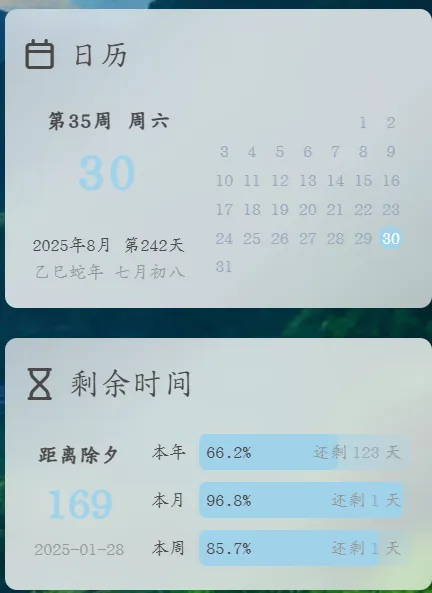
突然看到某个网站侧边栏有日历和倒计时,就研究了一下,抄下来了(🤭)
效果图:

效果图

添加js

1
2
3
4
5
6
7
8
9
10
11
12
13
14
15
16
17
18
19
20
21
22
23
24
25
26
27
28
29
30
31
32
33
34
35
36
37
38
39
40
41
42
43
44
45
46
47
48
49
50
51
52
53
54
55
56
57
58
59
60
61
62
63
64
65
66
67
68
69
70
71
72
73
74
75
76
77
78
79
80
81
82
83
84
85
86
87
88
89
90
91
92
93
94
95
96
97
98
99
100
101
102
103
104
105
106
107
108
109
110
111
document.addEventListener("DOMContentLoaded", () => {
initializeCard();
});

document.addEventListener("pjax:complete", () => {
initializeCard();
});

function initializeCard() {
cardTimes();
cardRefreshTimes();
}

let year, month, week, date, dates, weekStr, monthStr, asideTime, asideDay, asideDayNum, animalYear, ganzhiYear, lunarMon, lunarDay;
const now = new Date();

function cardRefreshTimes() {
const e = document.getElementById("card-widget-schedule");
if (e) {
asideDay = (now - asideTime) / 1e3 / 60 / 60 / 24;
e.querySelector("#pBar_year").value = asideDay;
e.querySelector("#p_span_year").innerHTML = (asideDay / 365 * 100).toFixed(1) + "%";
e.querySelector(".schedule-r0 .schedule-d1 .aside-span2").innerHTML = `还剩<a> ${(365 - asideDay).toFixed(0)} </a>天`;
e.querySelector("#pBar_month").value = date;
e.querySelector("#pBar_month").max = dates;
e.querySelector("#p_span_month").innerHTML = (date / dates * 100).toFixed(1) + "%";
e.querySelector(".schedule-r1 .schedule-d1 .aside-span2").innerHTML = `还剩<a> ${(dates - date)} </a>天`;
e.querySelector("#pBar_week").value = week === 0 ? 7 : week;
e.querySelector("#p_span_week").innerHTML = ((week === 0 ? 7 : week) / 7 * 100).toFixed(1) + "%";
e.querySelector(".schedule-r2 .schedule-d1 .aside-span2").innerHTML = `还剩<a> ${(7 - (week === 0 ? 7 : week))} </a>天`;
}
}

function cardTimes() {
year = now.getFullYear();
month = now.getMonth();
week = now.getDay();
date = now.getDate();

const e = document.getElementById("card-widget-calendar");
if (e) {
const isLeapYear = year % 4 === 0 && year % 100 !== 0 || year % 400 === 0;
weekStr = ["周日", "周一", "周二", "周三", "周四", "周五", "周六"][week];
const monthData = [
{ month: "1月", days: 31 },
{ month: "2月", days: isLeapYear ? 29 : 28 },
{ month: "3月", days: 31 },
{ month: "4月", days: 30 },
{ month: "5月", days: 31 },
{ month: "6月", days: 30 },
{ month: "7月", days: 31 },
{ month: "8月", days: 31 },
{ month: "9月", days: 30 },
{ month: "10月", days: 31 },
{ month: "11月", days: 30 },
{ month: "12月", days: 31 }
];
monthStr = monthData[month].month;
dates = monthData[month].days;

const t = (week + 8 - date % 7) % 7;
let n = "", d = false, s = 7 - t;
const o = (dates - s) % 7 === 0 ? Math.floor((dates - s) / 7) + 1 : Math.floor((dates - s) / 7) + 2;
const c = e.querySelector("#calendar-main");
const l = e.querySelector("#calendar-date");

l.style.fontSize = ["64px", "48px", "36px"][Math.min(o - 3, 2)];

for (let i = 0; i < o; i++) {
if (!c.querySelector(`.calendar-r${i}`)) {
c.innerHTML += `<div class='calendar-r${i}'></div>`;
}
for (let j = 0; j < 7; j++) {
if (i === 0 && j === t) {
n = 1;
d = true;
}
const r = n === date ? " class='now'" : "";
if (!c.querySelector(`.calendar-r${i} .calendar-d${j} a`)) {
c.querySelector(`.calendar-r${i}`).innerHTML += `<div class='calendar-d${j}'><a${r}>${n}</a></div>`;
}
if (n >= dates) {
n = "";
d = false;
}
if (d) {
n += 1;
}
}
}

const lunarDate = chineseLunar.solarToLunar(new Date(year, month, date));
animalYear = chineseLunar.format(lunarDate, "A");
ganzhiYear = chineseLunar.format(lunarDate, "T").slice(0, -1);
lunarMon = chineseLunar.format(lunarDate, "M");
lunarDay = chineseLunar.format(lunarDate, "d");

const newYearDate = new Date("2026/02/16 00:00:00");
const daysUntilNewYear = Math.floor((newYearDate - now) / 1e3 / 60 / 60 / 24);
asideTime = new Date(`${new Date().getFullYear()}/01/01 00:00:00`);
asideDay = (now - asideTime) / 1e3 / 60 / 60 / 24;
asideDayNum = Math.floor(asideDay);
const weekNum = week - asideDayNum % 7 >= 0 ? Math.ceil(asideDayNum / 7) : Math.ceil(asideDayNum / 7) + 1;

e.querySelector("#calendar-week").innerHTML = `第${weekNum}周 ${weekStr}`;
e.querySelector("#calendar-date").innerHTML = date.toString().padStart(2, "0");
e.querySelector("#calendar-solar").innerHTML = `${year}${monthStr} 第${asideDay.toFixed(0)}天`;
e.querySelector("#calendar-lunar").innerHTML = `${ganzhiYear}${animalYear}年 ${lunarMon}${lunarDay}`;
document.getElementById("schedule-days").innerHTML = daysUntilNewYear;
}
}

添加css

在主题文件 source/css/新建 calendar.css

1
2
3
4
5
6
7
8
9
10
11
12
13
14
15
16
17
18
19
20
21
22
23
24
25
26
27
28
29
30
31
32
33
34
35
36
37
38
39
40
41
42
43
44
45
46
47
48
49
50
51
52
53
54
55
56
57
58
59
60
61
62
63
64
65
66
67
68
69
70
71
72
73
74
75
76
77
78
79
80
81
82
83
84
85
86
87
88
89
90
91
92
93
94
95
96
97
98
99
100
101
102
103
104
105
106
107
108
109
110
111
112
113
114
115
116
117
118
119
120
121
122
123
124
125
126
127
128
129
130
131
132
133
134
135
136
137
138
139
140
141
142
143
144
145
146
147
148
149
150
151
152
153
154
155
156
157
158
159
160
161
162
163
164
165
166
167
168
169
170
171
172
173
174
175
176
177
178
179
180
181
182
183
184
185
186
187
188
189
190
191
192
193
194
195
196
197
198
199
200
201
202
203
204
205
206
207
208
209
210
211
212
213
214
215
216
217
218
219
220
221
222
/* 浅色主题变量覆盖 -------------------------------- */
:root {
--anzhiyu-main: #a0d2eb; /* 主强调色:柔和天空蓝 */
--anzhiyu-main-op: rgba(160, 210, 235, 0.6);
--anzhiyu-main-op-deep: rgba(160, 210, 235, 0.4);
--anzhiyu-main-op-light: rgba(160, 210, 235, 0.2);

--efu-card-bg: #fdfdfd; /* 卡片背景:几乎白 */
--efu-fontcolor: #444; /* 主文本:深灰 */
--efu-secondtext: #999; /* 次级文本:浅灰 */
}
.card-widget {
padding: 10px!important;
max-height: calc(100vh - 100px);
}
.card-times a, .card-times div {
color: var(--efu-fontcolor);
}

#card-widget-calendar .item-content {
display: flex;
}

#calendar-area-left {
width: 45%;
}

#calendar-area-right {
width: 55%;
}

#calendar-area-left, #calendar-area-right {
height: 100%;
padding: 8px;
display: flex;
flex-direction: column;
align-items: center;
justify-content: flex-start;
}

#calendar-main {
width: 100%;
}

#calendar-week {
height: 1.2rem;
font-size: 14px;
letter-spacing: 1px;
font-weight: 700;
align-items: center;
display: flex;
}

#calendar-date {
height: 3rem;
line-height: 1.3;
font-size: 64px;
letter-spacing: 3px;
color: var(--anzhiyu-main);
font-weight: 700;
align-items: center;
display: flex;
position: relative;
top: calc(50% - 2.1rem);
}

#calendar-lunar, #calendar-solar {
height: 1rem;
font-size: 12px;
align-items: center;
display: flex;
position: absolute;
}

#calendar-solar {
bottom: 2.1rem;
}

#calendar-lunar {
bottom: 1rem;
color: var(--efu-secondtext);
}

#calendar-main a {
height: 1rem;
width: 1rem;
border-radius: 50%;
font-size: 12px;
line-height: 12px;
display: flex;
justify-content: center;
align-items: center;
}

#calendar-main a.now {
background: var(--anzhiyu-main);
color: var(--efu-card-bg);
}

#calendar-main .calendar-rh a {
color: var(--efu-secondtext);
}

.calendar-r0, .calendar-r1, .calendar-r2, .calendar-r3, .calendar-r4, .calendar-r5, .calendar-rh {
height: 1.2rem;
display: flex;
}

.calendar-d0, .calendar-d1, .calendar-d2, .calendar-d3, .calendar-d4, .calendar-d5, .calendar-d6 {
width: calc(100% / 7);
display: flex;
justify-content: center;
align-items: center;
}

#card-widget-schedule .item-content {
display: flex;
}

#schedule-area-left, #schedule-area-right {
height: 100px;
display: flex;
flex-direction: column;
justify-content: center;
align-items: center;
}

#schedule-area-left {
width: 30%;
}

#schedule-area-right {
width: 70%;
padding: 0 5px;
}

.schedule-r0, .schedule-r1, .schedule-r2 {
height: 2rem;
width: 100%;
align-items: center;
display: flex;
}

.schedule-d0 {
width: 30px;
margin-right: 5px;
text-align: center;
font-size: 12px;
}

.schedule-d1 {
width: calc(100% - 35px);
height: 1.5rem;
align-items: center;
display: flex;
}

progress::-webkit-progress-bar {
background: linear-gradient(to right, var(--anzhiyu-main-op-deep), var(--anzhiyu-main-op), var(--anzhiyu-main-op-light));
border-radius: 5px;
overflow: hidden;
}

progress::-webkit-progress-value {
background: var(--anzhiyu-main);
border-radius: 5px;
}

.aside-span1, .aside-span2 {
height: 1rem;
font-size: 12px;
z-index: 1;
display: flex;
align-items: center;
position: absolute;
}

.aside-span1 {
margin-left: 5px;
}

.aside-span2 {
right: 20px;
color: var(--efu-secondtext);
}

.aside-span2 a {
margin: 0 3px;
}

#pBar_month, #pBar_week, #pBar_year {
width: 100%;
border-radius: 5px;
height: 100%;
}

#schedule-date, #schedule-days, #schedule-title {
display: flex;
align-items: center;
}

#schedule-title {
height: 25px;
line-height: 1;
font-size: 14px;
font-weight: 700;
}

#schedule-days {
height: 40px;
line-height: 1;
font-size: 30px;
font-weight: 900;
color: var(--anzhiyu-main);
}

#schedule-date {
height: 20px;
line-height: 1;
font-size: 12px;
color: var(--efu-secondtext);
}

引入

新增+号后面内容

1
2
3
4
5
6
7
8
9
inject:
head:
# 自定义css
+ - <link rel="stylesheet" href="/css/calendar.css">

bottom:
# 自定义js
+ - <script src="/js/calendar.js"></script>
+ - <script src="https://unpkg.com/chinese-lunar@0.1.4/lib/chinese-lunar.js"></script>

blogroot/source/_data 文件夹下创建 widget.yml 文件,并添加以下内容:

1
2
3
4
5
6
7
8
9
10
11
12
13
14
15
16
17
18
19
20
21
22
23
24
25
26
27
28
29
30
31
32
33
34
35
36
37
38
39
40
41
42
43
44
45
46
47
48
49
50
51
52
53
54
55
bottom:
- class_name: calendar
id_name: card-widget-calendar
name:
icon:
order: -1
html: |
<div id="calendar-area-left">
<div id="calendar-week"></div>
<div id="calendar-date" style="font-size: 48px;"></div>
<div id="calendar-solar"></div>
<div id="calendar-lunar"></div>
</div>
<div id="calendar-area-right">
<div id="calendar-main">
</div>
</div>

- class_name: schedule
id_name: card-widget-schedule
name:
icon:
order: -1
html: |
<div id="schedule-area-left">
<div id="schedule-title">距离除夕</div>
<div id="schedule-days"></div>
<div id="schedule-date">2025-01-28</div>
</div>
<div id="schedule-area-right">
<div class="schedule-r0">
<div class="schedule-d0">本年</div>
<div class="schedule-d1">
<span id="p_span_year" class="aside-span1"></span>
<span class="aside-span2">还剩<a></a>天</span>
<progress max="365" id="pBar_year"></progress>
</div>
</div>
<div class="schedule-r1">
<div class="schedule-d0">本月</div>
<div class="schedule-d1">
<span id="p_span_month" class="aside-span1"></span>
<span class="aside-span2">还剩<a></a>天</span>
<progress max="30" id="pBar_month"></progress>
</div>
</div>
<div class="schedule-r2">
<div class="schedule-d0">本周</div>
<div class="schedule-d1">
<span id="p_span_week" class="aside-span1"></span>
<span class="aside-span2">还剩<a></a>天</span>
<progress max="7" id="pBar_week"></progress>
</div>
</div>
</div>

参考

]]>
https://blog.biss.click/posts/5ed2f1e6/ 2026-01-15T23:47:07.000Z 突然看到某个网站侧边栏有日历和倒计时,就研究了一下,抄下来了(🤭)
效果图:

在侧边栏添加日历和倒计时 2026-03-15T10:15:08.065Z biss 最近一直忙于学习(虽然也没怎么好好学),所以一直忘了网站的更新;现在闲下来了,又不知道该写点什么;就写写我和朋友们的故事吧。
因为一次偶然的突发奇想,解锁了挂号信这种奇奇怪怪的通信方式,虽然现在网络发达,但感觉这种方式有一种独特的魅力。所以从去年开始就断断续续地给朋友们写信,这是一些挂号信收据:

一些挂号信收据
这应该是去年上半年的一张图片,下半年也在零散的发,只不过下半年比较忙,没发多少。到年底的时候呢又想着写一点贺年信,当然感觉自己的水平下降,写不出什么好的文章。于是开始着手准备电子版贺卡,当然完全使用了AI工具,自己写太麻烦,也没什么精力去写,于是就有了下面的电子贺卡:
电子贺卡
之后呢,又写了其他一些有趣的功能,但好像不是这篇文章的重点;再写信和创作电子贺卡是感慨万分,进入大学之后时间似乎变得十分快,感觉除了几个天天联系的好友之外,其他人都慢慢疏远了,不过这也是必然的事情,也没什么可悲伤的,只是感慨罢了。怎么说,就这样吧,下次有时间再在这篇文章里更新。]]>
https://blog.biss.click/posts/a31d95d9/ 2026-01-05T05:14:16.000Z 最近一直忙于学习(虽然也没怎么好好学),所以一直忘了网站的更新;现在闲下来了,又不知道该写点什么;就写写我和朋友们的故事吧。
因为一次偶然的突发奇想,解锁了挂号信这种奇奇怪怪的通信方式,虽然现在网络发达,但感觉这种方式有一种独特的魅力。所以从去年]]>
和朋友们的故事 2026-03-15T10:15:08.065Z
biss 在之前已经安装了Openwrt系统,并且也配置了OpenClashAdguardHome,两者的原理简单看都是劫持DNS,所以两者要同时运行,必须经过一定的配置。
无非就这两种方式:

image

左边的方式更简单一些,只需要修改AdguardHome的上游DNS服务器为127.0.0.1:7874 即可;
右边的方式需要将OpenClash里的DNS指向AdguardHome,但是可能有拦截失败的情况(好像没有遇到过)。

]]>
https://blog.biss.click/posts/66e66374/ 2025-10-05T07:18:00.000Z 在之前已经安装了Openwrt系统,并且也配置了OpenClashAdguardHome,两者的原理简单看都是劫持DNS,所以两者要同时运行,必须经过一定的配置。 Adguard和Openclash共存 2026-03-15T10:15:08.065Z
biss 众所周知,Adguardhome是用于拦截广告的工具,搭配好的规则,拦截效果才会更好,下面来分享一些规则:

  1. 一个综合的过滤规则
  2. 广告过滤规则订阅中心 集成了许多规则,可以挑选一下加入。
image
这是我添加的规则,在这些规则下,用Adblocktester可以达到74分,基本够用
image
]]>
https://blog.biss.click/posts/69b16001/ 2025-10-05T04:18:00.000Z 众所周知,Adguardhome是用于拦截广告的工具,搭配好的规则,拦截效果才会更好,下面来分享一些规则:

  1. 一个综合的过滤规则
Adguard规则分享 2026-03-15T10:15:08.065Z
biss 接续前言,AdguardHome是一款广告拦截软件,有了一台小软路由后就开始折腾了。

安装

首先要下载软件包,但是经过尝试,软件源里面的luci-app-adguardhome不太好用(也可能是我不会用) ,所以我用的下面的包:

虽然好几年没更新了,但还是能用。下载之后上传到路由器,使用opkg install命令安装,或者可以直接通过网页安装:

image

配置

如下图所示进行操作,如果更新核心版本失败,考虑更换升级用的下载链接,使用镜像源,或者科学上网,错号框内的非必要不修改;

Screenshot of the AdGuard Home configuration page in the OpenWrt web interface. The left sidebar menu is expanded to highlight the Services section and AdGuard Home submenu. The main panel displays configuration options including enable checkbox, web management port, update core version button, executable file path, compressed file option, configuration file path, working directory, and log file path. A large red X marks the configuration file path field, indicating it should not be modified. Visible text includes AdGuard Home, OpenClash, miniDLNA, UPnP IGD and PCP, enable, update core version, executable file path, configuration file path, working directory, log file path, and other related options. The interface is clean and instructional, with a neutral tone.

最后点击“保存并应用”,然后点击AdGuardHome Web:3000,进行安装,建议关闭路由器自带DNS/DHCP服务器,AdguardHome直接替代

Screenshot of the OpenWrt web interface showing the DHCP/DNS settings page. The left sidebar menu is expanded to highlight the network section and DHCP/DNS submenu. The main panel displays the General tab with options for enabling exclusive authorization and DNS redirect, both with checkboxes. The interface is clean and organized, with navigation tabs for additional settings such as DNS records, filters, logs, and PXE/TFTP. The overall tone is neutral and instructional. Visible text includes DHCP/DNS, 常规, 唯一授权, DNS redirect, 本地解析这些项目, 本地域名, and other configuration options.
alt=Screenshot of the OpenWrt web interface focused on DHCP/DNS settings. The left sidebar menu highlights the network section and DHCP/DNS submenu. Red arrows guide the user through selecting DHCP/DNS, then the settings and port tab, and finally entering 5353 in the DNS server port field. The main panel displays options for specifying interface addresses, listening interfaces, excluded interfaces, and DNS server port. Visible text includes DHCP/DNS, 设置及端口, 5353, 监听接口, 排除接口, DNS服务器端口, DNS查询端口, and related configuration options. The interface is clean and instructional, with a neutral and helpful tone.

然后,设置AdguardHome的DHCP服务器,注意要先检查配置,再启用

image
]]>
https://blog.biss.click/posts/b57500e9/ 2025-09-28T09:10:18.000Z 接续前言,AdguardHome是一款广告拦截软件,有了一台小软路由后就开始折腾了。

在Openwrt上安装AdguardHome 2026-03-15T10:15:08.065Z
biss 前言

因为一直想要实现从软路由上进行代理,所以买到了一个Cudy Tr3000刷系统折腾。用这篇文章记录一下安装的过程。

安装

可以通过web管理页面安装,搜索openclash。

image

当然也可以在终端中执行命令:

1
2
3
opkg update
opkg install bash iptables dnsmasq-full curl ca-bundle ipset ip-full iptables-mod-tproxy iptables-mod-extra ruby ruby-yaml kmod-tun kmod-inet-diag unzip luci-compat luci luci-base
opkg install luci-app-openclash

配置

首先需要下载内核,推荐启用Smart内核。

image

然后导入配置:

image

然后就可以开心使用啦!
感觉zashboard简洁好看一些,看自己感觉啦

image
]]> https://blog.biss.click/posts/2b2fb1a7/ 2025-09-02T13:00:00.000Z 前言

因为一直想要实现从软路由上进行代理,所以买到了一个Cudy Tr3000刷系统折腾。用这篇文章记录一下安装的过程。

在Openwrt中安装OpenClash 2026-03-15T10:15:08.065Z biss 最近搞到了一台Cudy-TR3000路由器,用来进行科学上网(小猫咪),先记录一下刷写Openwrt系统的过程。

下载固件

  1. 中间固件
    中间固件可以在Cudy官方网站上下载
image
2. Openwrt固件在下面的网站中下载,下载最新的就行

刷写固件

访问192.168.10.1先刷入中间固件

image

然后访问192.168.1.1,刷入Openwrt插件

image

然后访问10.0.0.1,就可以看到openwrt登录页面了,默认密码是root

image
]]>
https://blog.biss.click/posts/8802e397/ 2025-08-31T12:15:00.000Z 最近搞到了一台Cudy-TR3000路由器,用来进行科学上网(小猫咪),先记录一下刷写Openwrt系统的过程。

Cudy TR3000刷入Openwrt系统 2026-03-15T10:15:08.065Z
biss 引言

因为正好有云存储的需求,恰好又有服务器,所以决定自建一个Owncloud网盘服务,集成一个Onlyoffice。

安装网盘

建站

在官网下载最新的安装包

因为使用1panel,所以搭网站很简单,选择php7.3运行环境,添加必要的php扩展,新建一个Mysql数据库,按照正常步骤安装就行了。

调优

  1. 配置Redis缓存
    在1panel安装Redis,
    在config/config.php中添加
1
2
3
4
5
6
7
8
9
10
11
'filelocking.enabled' => true,
'memcache.local' => '\OC\Memcache\Redis',
'memcache.locking' => '\OC\Memcache\Redis',
'redis' => [
'host' => '容器名', // For a Unix domain socket, use '/var/run/redis/redis.sock'
'port' => 6379, // Set to 0 when using a Unix socket
'timeout' => 0, // Optional, keep connection open forever
'password' => 'password', // Optional, if not defined no password will be used.
'dbindex' => 0, // Optional, if undefined SELECT will not run and will
// use Redis Server's default DB Index.
],
  1. 添加Cron任务
    首先在Owncloud的配置页面把计划任务调整为Cron
    在1panel的计划任务中添加,容器选择php7.3的容器,用户必须为www-data,时间为每15分钟。
1
php sites/cloud.biss.click/index/occ system:cron

集成Onlyoffice

在1panel应用商店直接安装Onlyoffice,并反向代理到自己的域名
在Owncloud中搜索Onlyoffice插件,然后填写自己的域名、密钥(在参数中可以查到)

]]> https://blog.biss.click/posts/59c8572a/ 2025-08-26T06:27:00.000Z 引言

因为正好有云存储的需求,恰好又有服务器,所以决定自建一个Owncloud网盘服务,集成一个Onlyoffice。

搭建Owncloud并集成Onlyoffice 2026-03-15T10:15:08.065Z biss 序言

因为喜欢wordpress之类动态博客的在线编辑功能,但是又不想抛弃hexo,特别是这个花里胡哨的模板,所以想着给博客添加一个cms系统,在搜索一番后发现这种CMS系统叫无头CMS,然后找到一个很好的系统:sveltia-cms

安装

安装包

在博客根目录下运行npm i @sveltia/cms

创建必要文件

然后在博客source目录下创建admin目录
并在其下新建index.html

1
2
3
4
5
6
7
8
9
10
11
12
<!doctype html>
<html>
<head>
<meta charset="utf-8" />
<meta name="viewport" content="width=device-width, initial-scale=1.0" />
<meta name="robots" content="noindex" />
<title>博客管理</title>
</head>
<body>
<script src="https://unpkg.com/netlify-cms@^2.0.0/dist/netlify-cms.js"></script>
</body>
</html>

新建config.yml

1
2
3
4
5
6
7
8
9
10
11
12
13
14
15
16
17
18
19
20
21
22
23
24
25
26
27
28
29
30
31
32
33
34
35
36
37
38
39
40
41
42
43
44
45
46
47
48
49
50
51
52
53
54
55
56
57
58
59
60
61
62
63
64
65
66
67
68
69
70
71
72
73
74
75
76
77
78
79
80
81
82
83
84
85
86
87
88
89
90
91
92
93
94
95
96
97
98
99
100
101
102
103
104
105
106
107
108
109
110
111
112
113
114
115
116
117
118
119
120
121
122
123
124
125
126
127
128
129
130
131
132
133
134
135
136
137
138
# https://decapcms.org/docs/configuration-options/
backend:
name: github
repo: #博客存储库
branch: #分支
auth_type:
app_id:
media_folder: "folder"
public_folder: "folder"
site_url: ""
logo_url: ""
locale: "zh_Hans"
common_col_conf: &common_col_conf
create: true
slug: "{{fields.filename}}"
sortable_fields:
- "commit_date"
- "title"
- "date"
- "updated"
# https://decapcms.org/docs/widgets/
fields:
- label: "文件名"
name: "filename"
widget: "string"
- label: "标题"
name: "title"
widget: "string"
- label: "发表日期"
name: "date"
widget: "datetime"
format: "YYYY-MM-DD HH:mm:ss"
date_format: "YYYY-MM-DD"
time_format: "HH:mm:ss"
- label: "更新日期"
name: "updated"
widget: "datetime"
format: "YYYY-MM-DD HH:mm:ss"
date_format: "YYYY-MM-DD"
time_format: "HH:mm:ss"
required: false
- label: "封面"
name: "cover"
widget: "image"
required: false
- label: "标签"
name: "tags"
widget: "select"
multiple: true
required: false
options:
- "amazon"
- "android"
- "angularjs"
- "azure"
- "cdn"
- "chartjs"
- "chrome"
- "csharp"
- "css"
- "devops"
- "diary"
- "docker"
- "edge"
- "git"
- "github"
- "hexo"
- "html"
- "icarus"
- "java"
- "js"
- "life"
- "material"
- "mysql"
- "nodejs"
- "onedrive"
- "oneindex"
- "php"
- "restapi"
- "security"
- "serverless"
- "shadowdefender"
- "tool"
- "twikoo"
- "ubuntu"
- "vagrant"
- "vb"
- "vite"
- "vue"
- "webpack"
- "windows"
- "xlsx"
- "小程序"
- label: "分类"
name: "categories"
widget: "select"
multiple: true
required: false
options:
- "Diary"
- "Tool"
- "Tech"
- "FrontEnd"
- "BackEnd"
- "Windows"
- "Android"
- "Linux"
- "Serverless"
- label: "正文"
name: "body"
widget: "markdown"
- label: "原创"
name: "toc"
widget: "boolean"
default: true
- label: "评论"
name: "comments"
widget: "boolean"
default: true
collections:
- name: "2023"
label: "2023"
folder: "source/_posts/2023"
preview_path: "2023/{{filename}}/"
<<: *common_col_conf
- name: "pages"
label: "Pages"
files:
- name: "friends"
label: "友链"
file: "source/friends/index.md"
preview_path: "friends/"
<<: *common_col_conf
- name: "about"
label: "关于"
file: "source/about/index.md"
preview_path: "about/"
<<: *common_col_conf

需要自己修改一些配置;
一般到这一步就可以了,但是因为我使用自己的服务器,没办法用官方的auth系统,所以还要进一步配置。

创建auth系统、授权

比较简单,直接Cloudflare一键部署就可以
然后要在github新建一个oauth应用,就不写了,可以自己查找。
然后在cloudflare新建环境变量:
GITHUB_CLIENT_ID:
GITHUB_CLIENT_SECRET:
然后在config.yml添加

1
2
3
4
5
backend:
name: github # or gitlab
repo: username/repo
branch: main
base_url: <YOUR_WORKER_URL>

大功告成

访问博客的admin就可以了

]]>
https://blog.biss.click/posts/3a26a97a/ 2025-08-25T14:03:00.000Z 为博客添加CMS系统 2025-08-26T00:01:00.000Z
biss 记录一下自己为1Panel贡献自己应用的经历

预准备

  1. Fork仓库 把仓库fork到自己的仓库
  2. pull
    1
    git clone -b dev https://<your-github-username>/appstore
    创建新分支
    1
    2
    cd appstore
    git checkout -b app/<app-name>

创建文件

文件目录

1
2
3
4
5
6
7
8
9
10
11
12
13
├──halo // 以 halo 的 key 命名 ,下面解释什么是 key 
├── logo.png // 应用 logo , 最好是 180 * 180 px 不要超过 10 KB
├── data.yml // 应用声明文件
├── README.md // 应用的 README
├── 2.2.0 // 应用版本 注意不要以 v 开头
│   ├── data.yml // 应用的参数配置,下面有详细介绍
│   ├── data // 挂载出来的目录
| ├── scripts // 脚本目录 存放 init.sh upgrade.sh uninstall.sh
│   └── docker-compose.yml // docker-compose 文件
└── 2.3.2
├── data.yml
├── data
└── docker-compose.yml

应用声明文件data.yml

本文件主要用于声明应用的一些信息

1
2
3
4
5
6
7
8
9
10
11
12
13
14
15
16
17
18
19
20
additionalProperties:  #固定参数
key: halo #应用的 key ,仅限英文,用于在 Linux 创建文件夹
name: Halo #应用名称
tags:
- WebSite #应用标签,可以有多个,请参照下方的标签列表
description:
en: Powerful and easy-to-use open source website builder
zh: 强大易用的开源建站工具 #应用中文描述,不要超过30个字
zh-Hant:
ja:
ms:
pt-br:
ru:
ko:
type: website #应用类型,区别于应用分类,只能有一个,请参照下方的类型列表
crossVersionUpdate: true #是否可以跨大版本升级
limit: 0 #应用安装数量限制,0 代表无限制
website: https://halo.run/ #官网地址
github: https://github.com/halo-dev/halo #github 地址
document: https://docs.halo.run/ #文档地址

应用标签 - tags 字段

keyname
WebSite建站
ServerWeb 服务器
Runtime运行环境
Database数据库
Tool工具
CI/CDCI/CD
Local本地

应用类型 - type 字段

type说明
websitewebsite 类型在 1Panel 中支持在网站中一键部署,wordpress halo 都是此 type
runtimemysql openresty redis 等类型的应用
toolphpMyAdmin redis-commander jenkins 等类型的应用

应用参数配置文件 data.yml

(注意区分于应用主目录下面的 data.yaml

本文件主要用于生成安装时要填写的 form 表单,在应用版本文件夹下面 可以无表单,但是需要有这个 data.yml文件,并且包含 formFields 字段

以安装 halo 时的 form 表单 为例

如果要生成上面的表单,需要这么填写 data.yml

1
2
3
4
5
6
7
8
9
10
11
12
13
14
15
16
17
18
19
20
21
22
23
24
25
26
27
28
29
30
31
32
33
34
35
36
37
38
39
40
41
42
43
44
45
46
47
48
49
50
51
52
53
54
55
56
57
58
59
60
61
62
63
64
65
66
67
68
69
70
71
72
73
74
75
76
77
78
79
80
81
82
83
84
85
86
87
88
89
90
91
92
93
94
95
96
97
98
additionalProperties:  #固定参数
formFields:
- default: ""
envKey: PANEL_DB_HOST #docker-compose 文件中的参数
key: mysql #依赖应用的 key , 例如 mysql
label:
en: Database Service
ja: データベースサービス
ms: Perkhidmatan Pangkalan Data
pt-br: Serviço de Banco de Dados
ru: Сервис базы данных
ko: 데이터베이스 서비스
zh: 数据库服务
zh-Hant: 數據庫 服務
required: true #是否必填
type: service #如果需要依赖其他应用,例如数据库,使用此 type
- default: halo
envKey: PANEL_DB_NAME
label:
en: Database
ja: データベース
ms: Pangkalan Data
pt-br: Banco de Dados
ru: База данных
ko: 데이터베이스
zh: 数据库名
zh-Hant: 資料庫名稱
random: true #是否在 default 文字后面,增加随机字符串
required: true
rule: paramCommon #校验规则
type: text #需要手动填写的,使用此 type
- default: halo
envKey: PANEL_DB_USER
label:
en: User
ja: ユーザー
ms: Pengguna
pt-br: Usuário
ru: Пользователь
ko: 사용자
zh: 数据库用户
zh-Hant: 資料庫使用者
random: true
required: true
rule: paramCommon
type: text
- default: halo
envKey: PANEL_DB_USER_PASSWORD
label:
en: Password
ja: パスワード
ms: Kata laluan
pt-br: Senha
ru: Пароль
ko: 비밀번호
zh: 数据库用户密码
zh-Hant: 資料庫使用者密碼
random: true
required: true
rule: paramComplexity
type: password #密码字段使用此 type
- default: admin
envKey: HALO_ADMIN
labelEn: Admin Username
labelZh: 超级管理员用户名
required: true
rule: paramCommon
type: text
- default: http://localhost:8080
edit: true
envKey: HALO_EXTERNAL_URL
label:
en: External URL
ja: 外部URL
ms: URL Luaran
pt-br: URL Externa
ru: Внешний URL
ko: 외부 URL
zh: 外部访问地址
zh-Hant: 外部訪問地址
required: true
rule: paramExtUrl
type: text
- default: 8080
edit: true
envKey: PANEL_APP_PORT_HTTP
label:
en: Port
ja: ポート
ms: Port
pt-br: Porta
ru: Порт
ko: 포트
zh: 端口
zh-Hant:
required: true
rule: paramPort
type: number #端口使用此 type

关于端口字段:

PANEL_APP_PORT_HTTPweb 访问端口的优先使用此 envKey
envKey 中包含 PANEL_APP_PORT 前缀会被认定为端口类型,并且用于安装前的端口占用校验。注意:端口需要是外部端口

关于 type 字段:

type说明
servicetype: service 如果该应用需要依赖其他组件,如 mysql redis 等,可以通过 key: mysql 定义依赖的名称,在创建应用时会要求先创建依赖的应用。
passwordtype: password 敏感信息,如密码相关的字段会默认不显示明文。
texttype: text 一般内容,比如数据库名称,默认明文显示。
numbertype: number 一般用在端口相关的配置上,只允许输入数字。

简单的例子

1
2
3
4
5
6
7
8
9
10
11
12
13
14
15
16
17
18
19
20
21
22
23
24
25
26
27
28
29
30
31
32
33
34
35
36
37
38
39
40
41
42
43
44
45
46
47
48
49
50
51
52
53
54
55
56
57
58
59
60
61
62
63
64
65
66
67
68
69
70
71
72
73
74
75
76
77
78
79
80
81
82
83
84
85
86
87
88
89
90
91
92
# type: service,定义一个 mysql 的 service 依赖。
- child:
default: ""
envKey: PANEL_DB_HOST
required: true
type: service
default: mysql
envKey: PANEL_DB_TYPE
label:
en: Database Service
ja: データベースサービス
ms: Perkhidmatan Pangkalan Data
pt-br: Serviço de Banco de Dados
ru: Сервис баз данных
ko: 데이터베이스 서비스
zh-hant: 資料庫服務
zh: 数据库服务
required: true
type: apps
values:
- label: MySQL
value: mysql
- label: MariaDB
value: mariadb

# type: password
- default: word
envKey: PANEL_DB_USER_PASSWORD
labelEn: Database Password
labelZh: 数据库密码
label:
en: Database Password
ja: データベースのパスワード
ms: Kata Laluan Pangkalan Data
pt-br: Senha do Banco de Dados
ru: Пароль базы данных
ko: 데이터베이스 비밀번호
zh-hant: 資料庫密碼
zh: 数据库密码
random: true
required: true
type: password

# type: text
- default: ""
edit: true
envKey: REDIS_HOST
key: redis
required: true
type: service
label:
en: Redis Service
ja: Redis サービス
ms: Perkhidmatan Redis
pt-br: Serviço Redis
ru: Сервис Redis
ko: Redis 서비스
zh-Hant: Redis 服務
zh: Redis 服务

# type: number
- default: ""
edit: true
envKey: DBHUB_DB_PORT
required: true
type: text
label:
en: Database Port
ja: データベースのポート
ms: Pangkalan Data Port
pt-br: Porta do Banco de Dados
ru: Порт базы данных
ko: 데이터베이스 포트
zh-hant: 資料庫端口
zh: 数据库端口

# type: select
- default: "ERROR"
envKey: LOG_LEVEL
required: true
type: select
values:
- label: DEBUG
value: "DEBUG"
- label: INFO
value: "INFO"
- label: WARNING
value: "WARNING"
- label: ERROR
value: "ERROR"
- label: CRITICAL
value: "CRITICAL"

rule 字段目前支持的几种校验

rule规则
paramPort用于限制端口范围为 1-65535
paramExtUrl格式为 http(s)://(域名/ip):(端口)
paramCommon英文、数字、.-和_,长度2-30
paramComplexity支持英文、数字、.%@$!&~_-,长度6-30,特殊字符不能在首尾

应用 docker-compose.yml 文件

${PANEL_APP_PORT_HTTP} 类型的参数,都在 data.yml 中有声明

1
2
3
4
5
6
7
8
9
10
11
12
13
14
15
16
17
18
19
20
21
22
23
24
25
26
version: "3"  
services:
halo:
image: halohub/halo:2.2.0
container_name: ${CONTAINER_NAME} // 固定写法,勿改
restart: always
networks:
- 1panel-network // 1Panel 创建的应用都在此网络下
volumes:
- ./data:/root/.halo2
ports:
- ${PANEL_APP_PORT_HTTP}:8090
command:
- --spring.r2dbc.url=r2dbc:pool:${HALO_PLATFORM}://${PANEL_DB_HOST}:${HALO_DB_PORT}/${PANEL_DB_NAME}
- --spring.r2dbc.username=${PANEL_DB_USER}
- --spring.r2dbc.password=${PANEL_DB_USER_PASSWORD}
- --spring.sql.init.platform=${HALO_PLATFORM}
- --halo.external-url=${HALO_EXTERNAL_URL}
- --halo.security.initializer.superadminusername=${HALO_ADMIN}
- --halo.security.initializer.superadminpassword=${HALO_ADMIN_PASSWORD}
labels:
createdBy: "Apps"

networks:
1panel-network:
external: true

脚本

1Panel 在 安装之前、升级之前、卸载之后支持执行 .sh 脚本
分别对应 init.sh upgrade.sh uninstall.sh
存放目录(以halo为例) : halo/2.2.0/scripts

本地测试

将应用目录上传到 1Panel 的 /opt/1panel/resource/apps/local 文件夹下
注意:/opt 为 1Panel 默认安装目录,请根据自己的实际情况修改
上传完成后,目录结构如下

1
2
3
4
5
6
7
8
├──halo 
├── logo.png
├── data.yml
├── README.md
├── 2.2.0
├── data.yml
├── data
└── docker-compose.yml

在 1Panel 应用商店中,点击更新应用列表按钮同步本地应用

v1.2 版本及之前版本的本地应用,请参考这个文档修改

提交文件

1
2
3
git add .
git commit -m "Add my-app"
git push origin dev

提交 Pull Request

在你的仓库点击 Pull requests 菜单
点击 New pull request ,填写标题和描述
选择由你的分支提交到 1Panel-dev/appstore

]]> https://blog.biss.click/posts/bb18d851/ 2025-08-19T02:43:16.000Z 记录一下自己为1Panel贡献自己应用的经历

预准备

  1. Fork仓库
为1Panel添加自己想要的应用 2026-03-15T10:15:08.065Z